• Share
    • Twitter
    • LinkedIn
    • Facebook
    • Email
  • Feedback
  • Edit
Show / Hide Table of Contents

Create a SuperOffice CRM changed trigger

Some tooltip text!
• 4 minutes to read
 • 4 minutes to read

Use a changed trigger when you want your Zap to start whenever an existing record is updated in SuperOffice CRM.

Each record type (such as Appointment, Company, or Sale) has its own change event.

Use the tabs below to view the specific steps and screenshots for each trigger type. All other steps on this page are identical for every event.

Note

To create Zaps, you must connect a SuperOffice CRM account that has General Administrator user rights.

Steps

  1. On the Zaps page, click Create.

  2. Click the Trigger step to open a window for selecting the application to use.
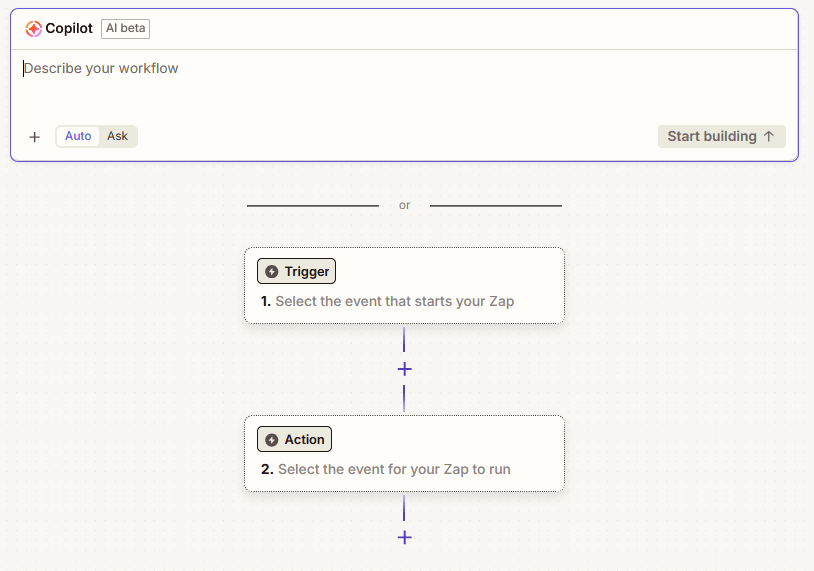
    Zapier window showing the Create your trigger step -screenshot

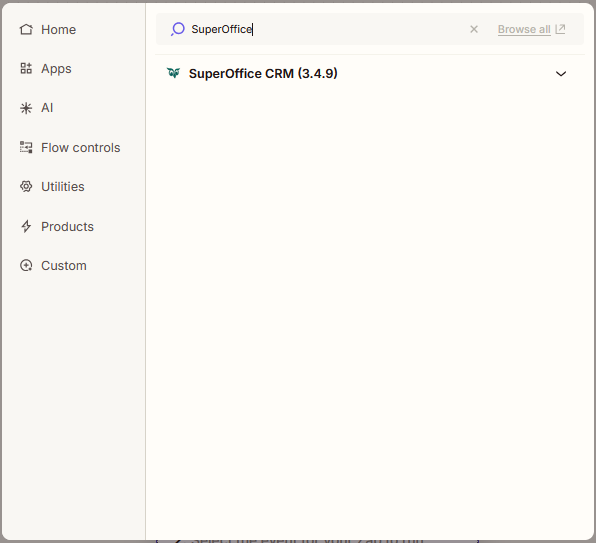
    Search for and click on SuperOffice.

    Zapier: Search for SO -screenshot

  3. A side menu opens. In the Trigger event section, select the event to listen for. For example, Appointment Changed or Sale Changed.

  4. Click the Account section and log in using a SuperOffice account.

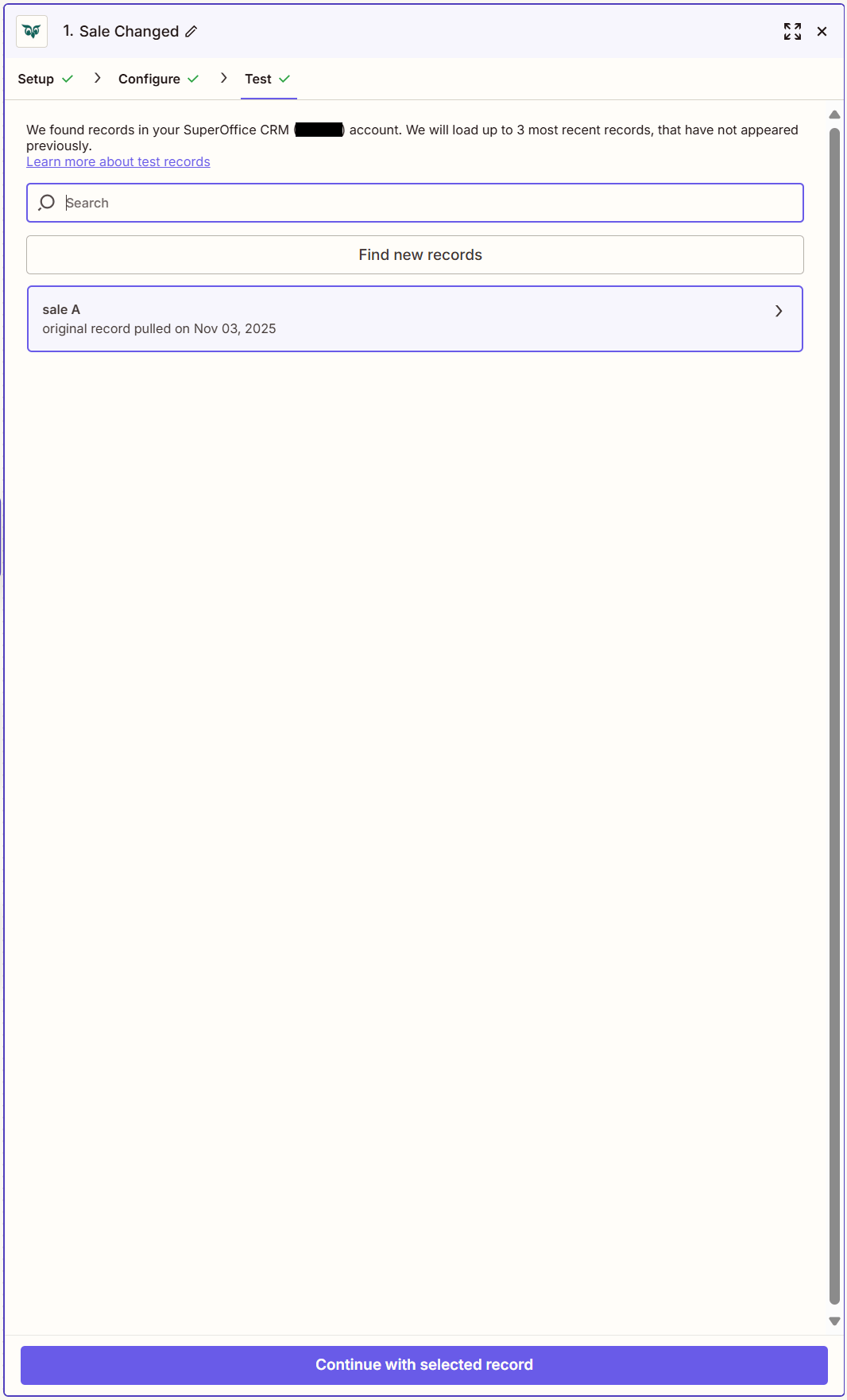
  5. Click the Continue button at the bottom of the side panel to proceed to the Test step, where the trigger can be verified by selecting Continue with selected record.

  6. Click the Action step to open a window for selecting the application to use. This can be an action in Gmail, another external system, or a SuperOffice action.
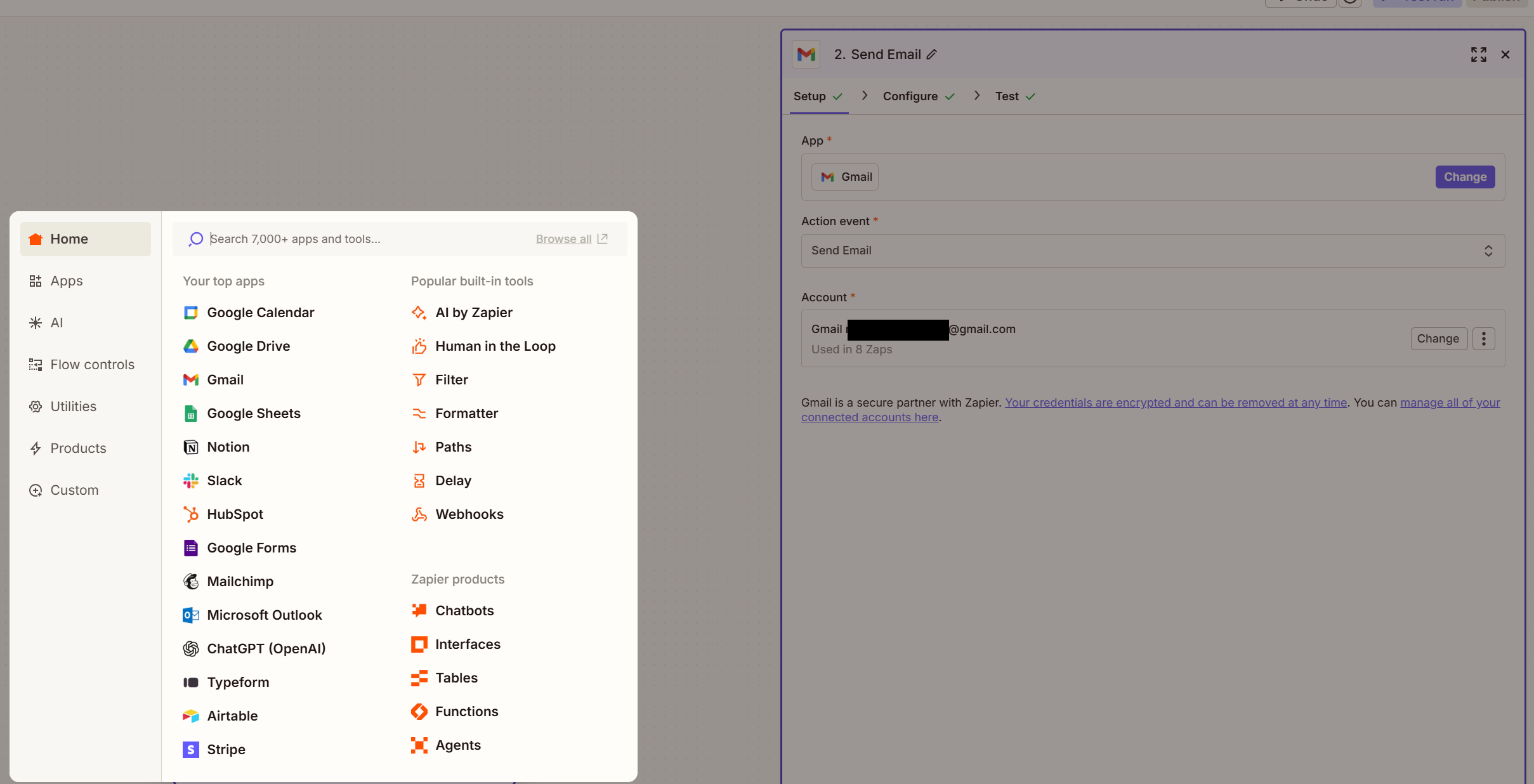
    Zapier: Select your action -screenshot

  • Appointment Changed
  • Company Changed
  • Contact Changed
  • Document Changed
  • Project Changed
  • Project Member Changed
  • Sale Changed
  • In the Trigger event section, select Appointment Changed.
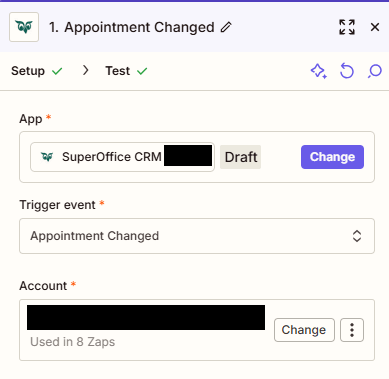
    Zapier setup window showing the Appointment Changed trigger option -screenshot

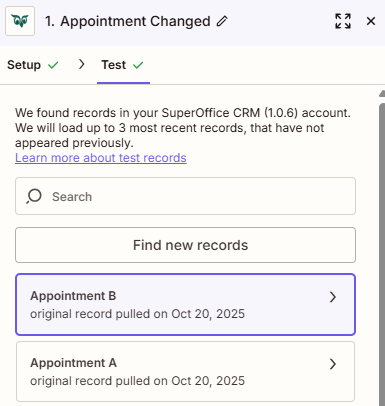
  • Verify the trigger:

    Zapier test window showing successful trigger verification -screenshot

  • When the Appointment Changed trigger runs in SuperOffice CRM, the chosen action executes automatically.

  • Related actions and triggers:

    • Create Appointment action
    • Update Appointment action
    • New Appointment trigger
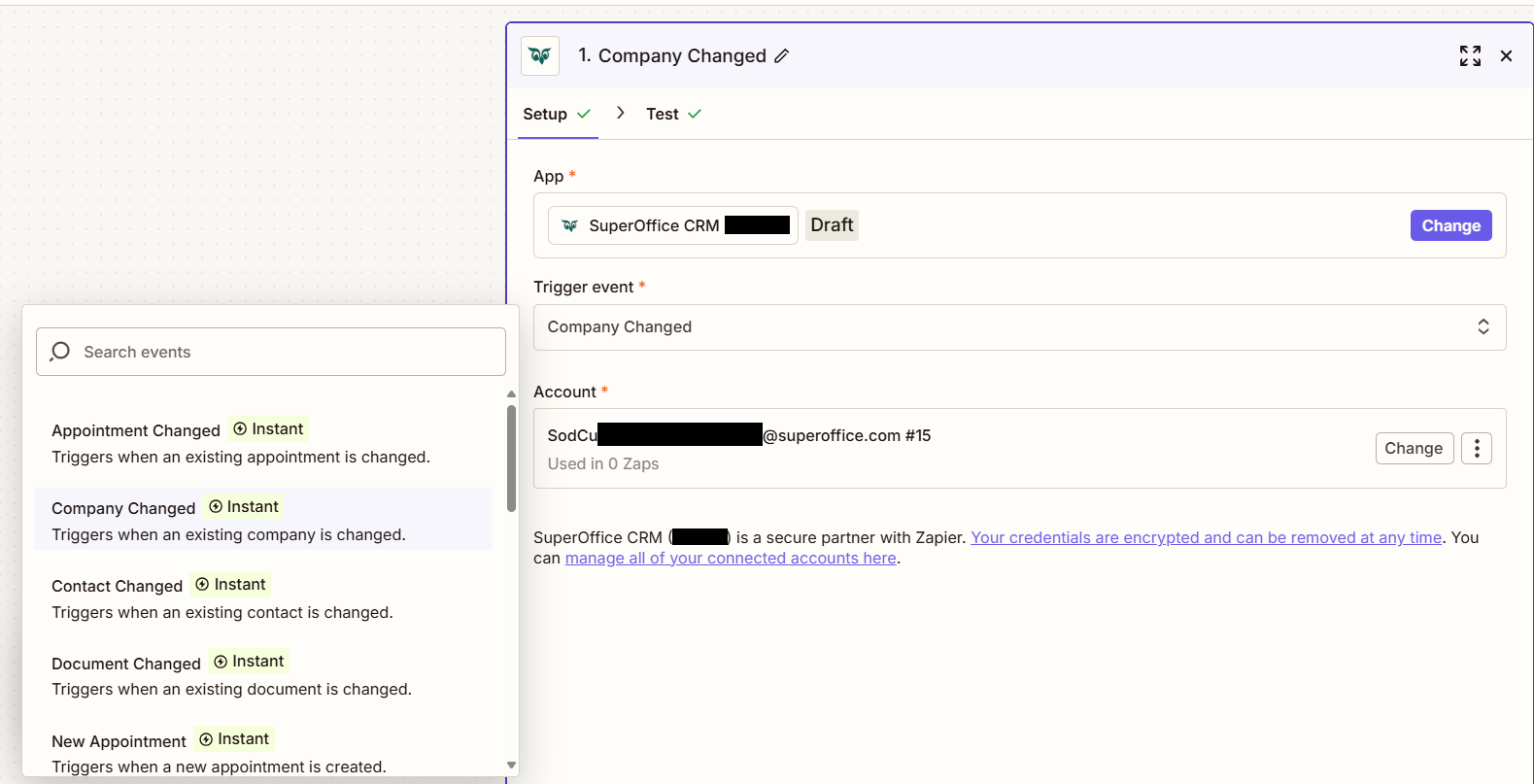
  • In the Trigger event section, select Company Changed.

    Zapier setup window showing the Company Changed trigger option -screenshot

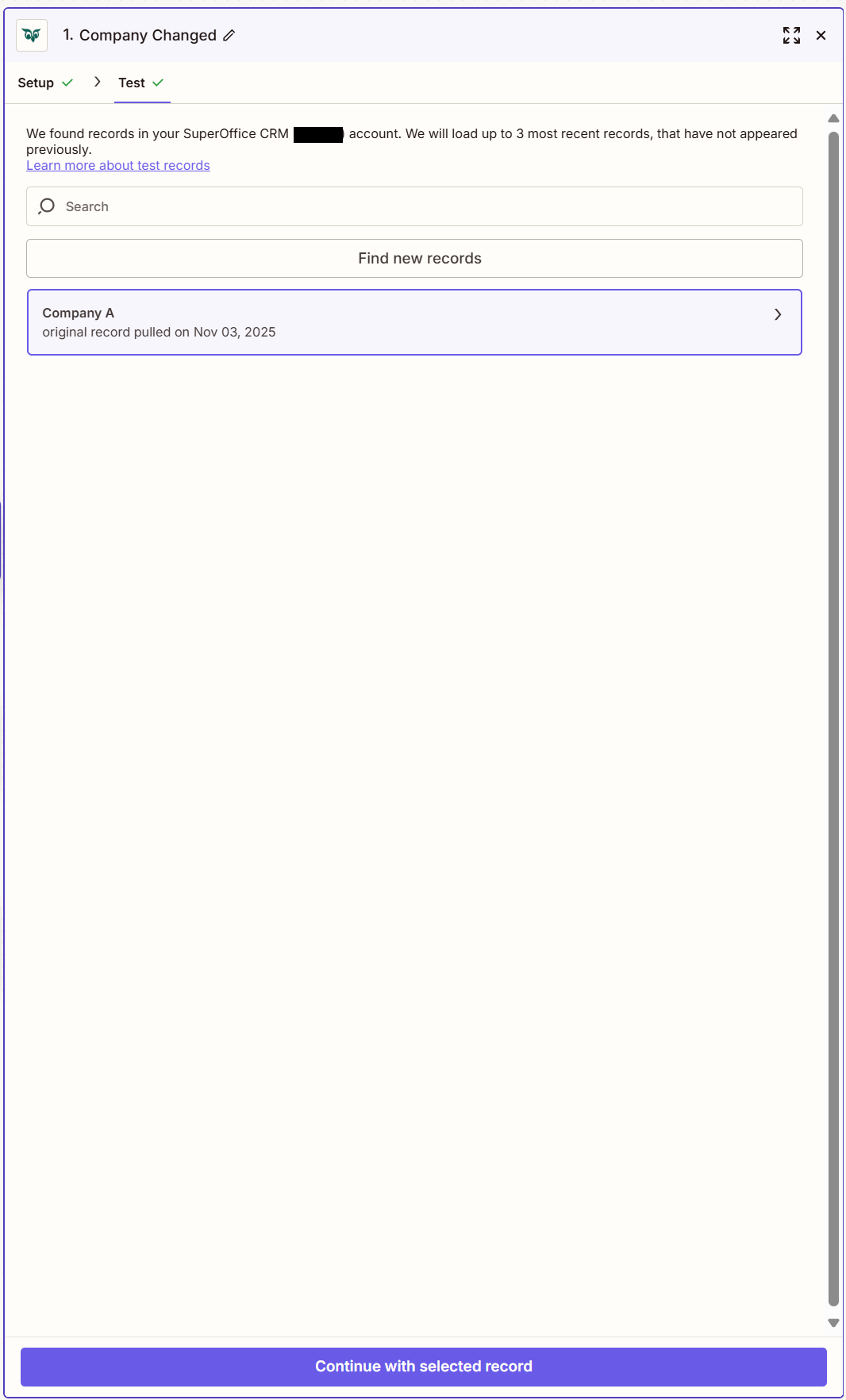
  • Verify the trigger:

    Zapier test window showing successful trigger verification -screenshot

  • When the Company Changed trigger runs in SuperOffice CRM, the chosen action executes automatically.

  • Related actions and triggers:
    • Create Company action
    • Update Company action
    • New Company trigger
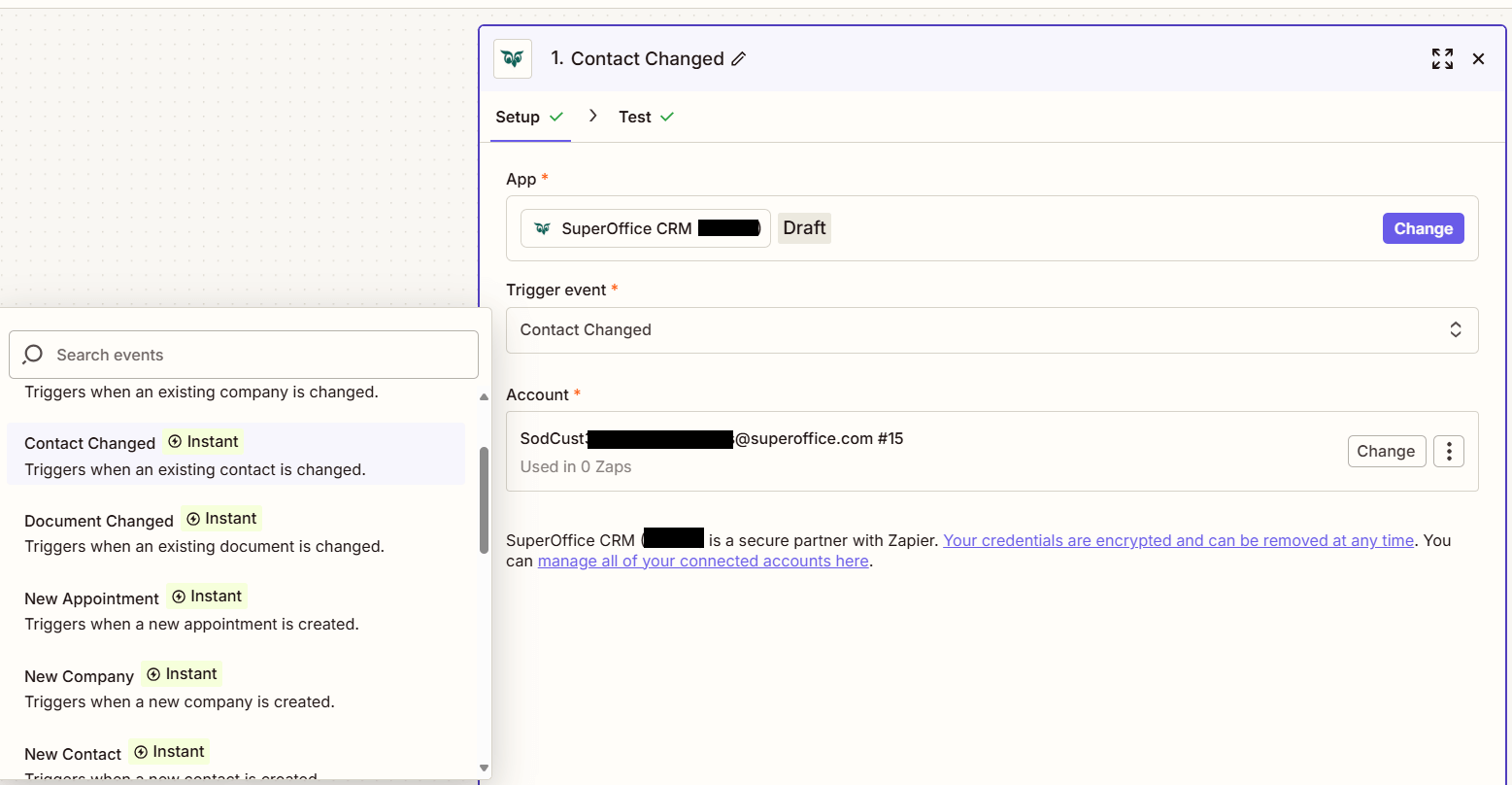
  • In the Trigger event section, select Contact Changed.

    Zapier setup window showing the Contact Changed trigger option -screenshot

  • Verify the trigger:

    Zapier test window showing successful trigger verification -screenshot

  • When the Contact Changed trigger runs in SuperOffice CRM, the chosen action executes automatically.

  • Related actions and triggers:

    • Create Contact action
    • Update Contact action
    • New Contact trigger
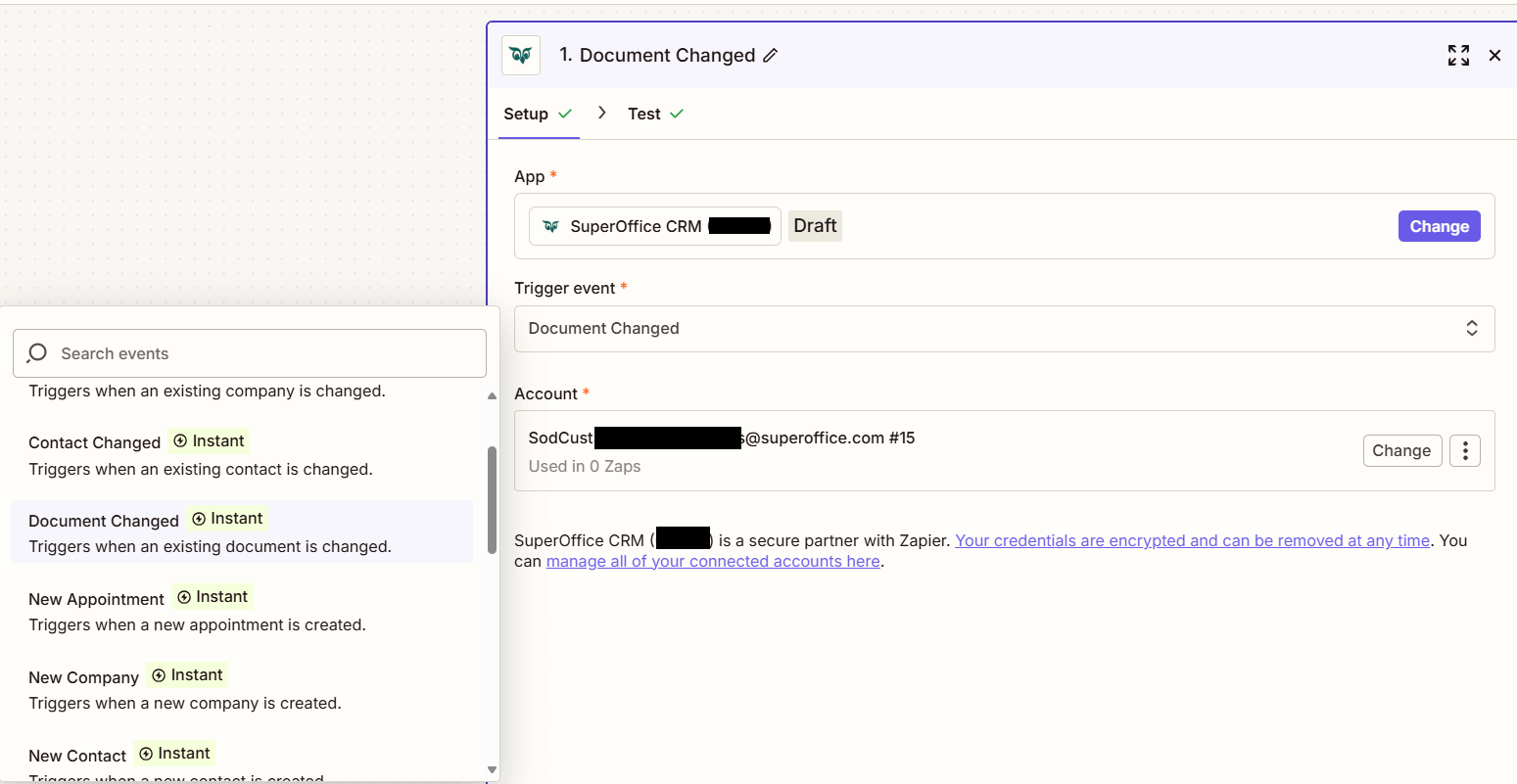
  • In the Trigger event section, select Document Changed.

    Zapier setup window showing the Document Changed trigger option -screenshot

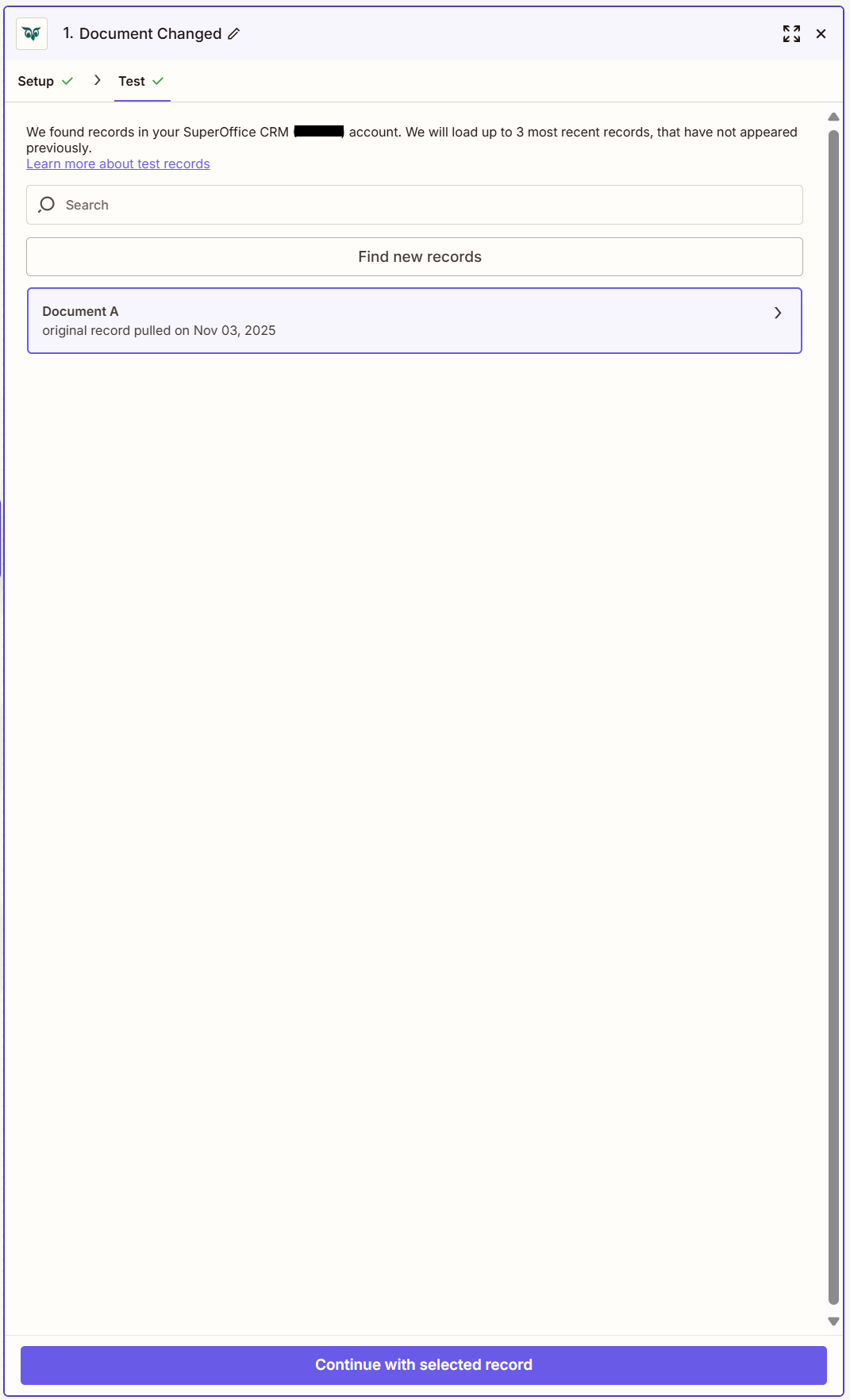
  • Verify the trigger:

    Zapier test window showing successful trigger verification -screenshot

  • When the Document Changed trigger runs in SuperOffice CRM, the chosen action executes automatically.

  • Related actions and triggers:

    • Create Document action
    • Update Document action
    • New Document trigger
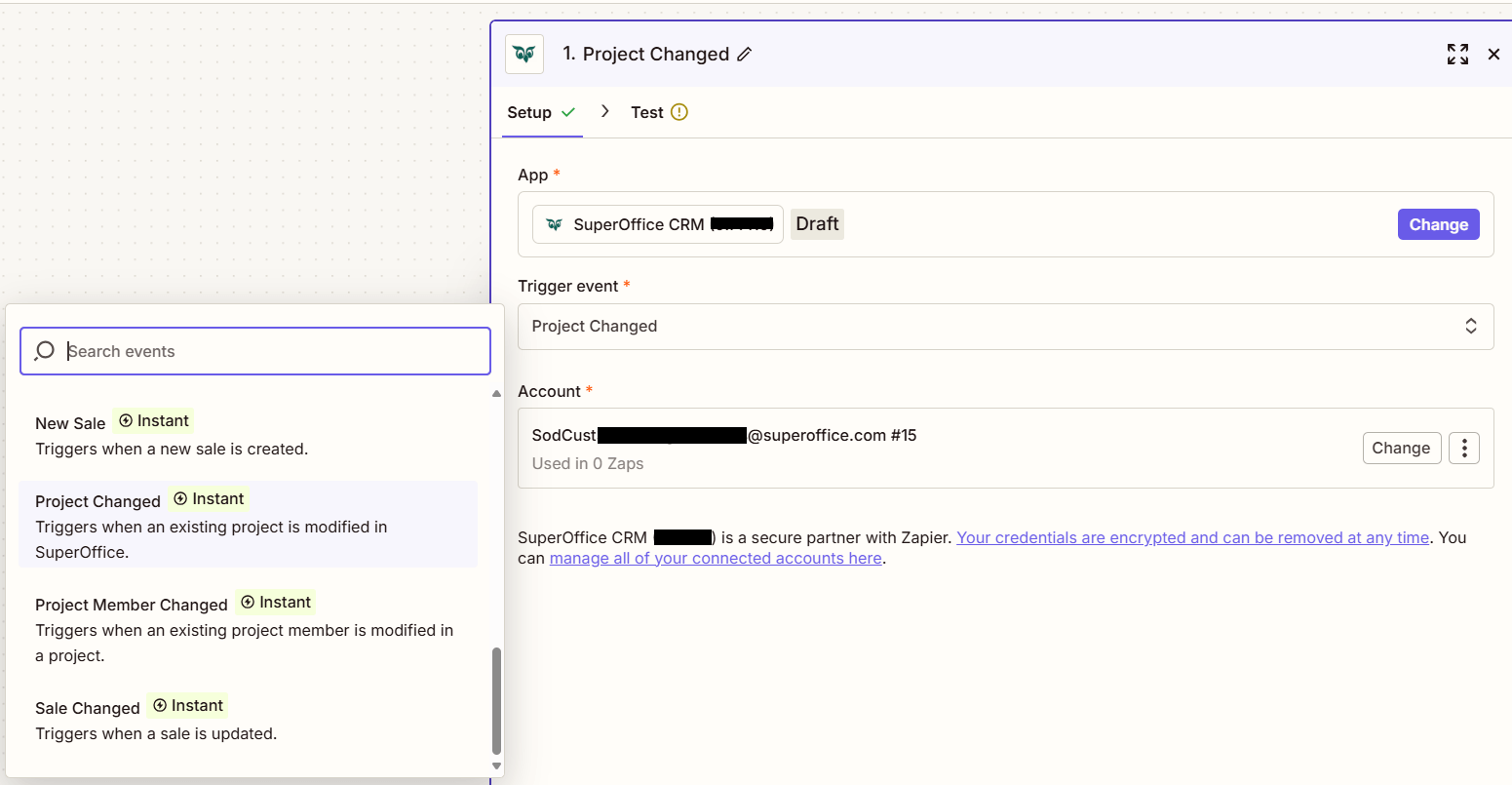
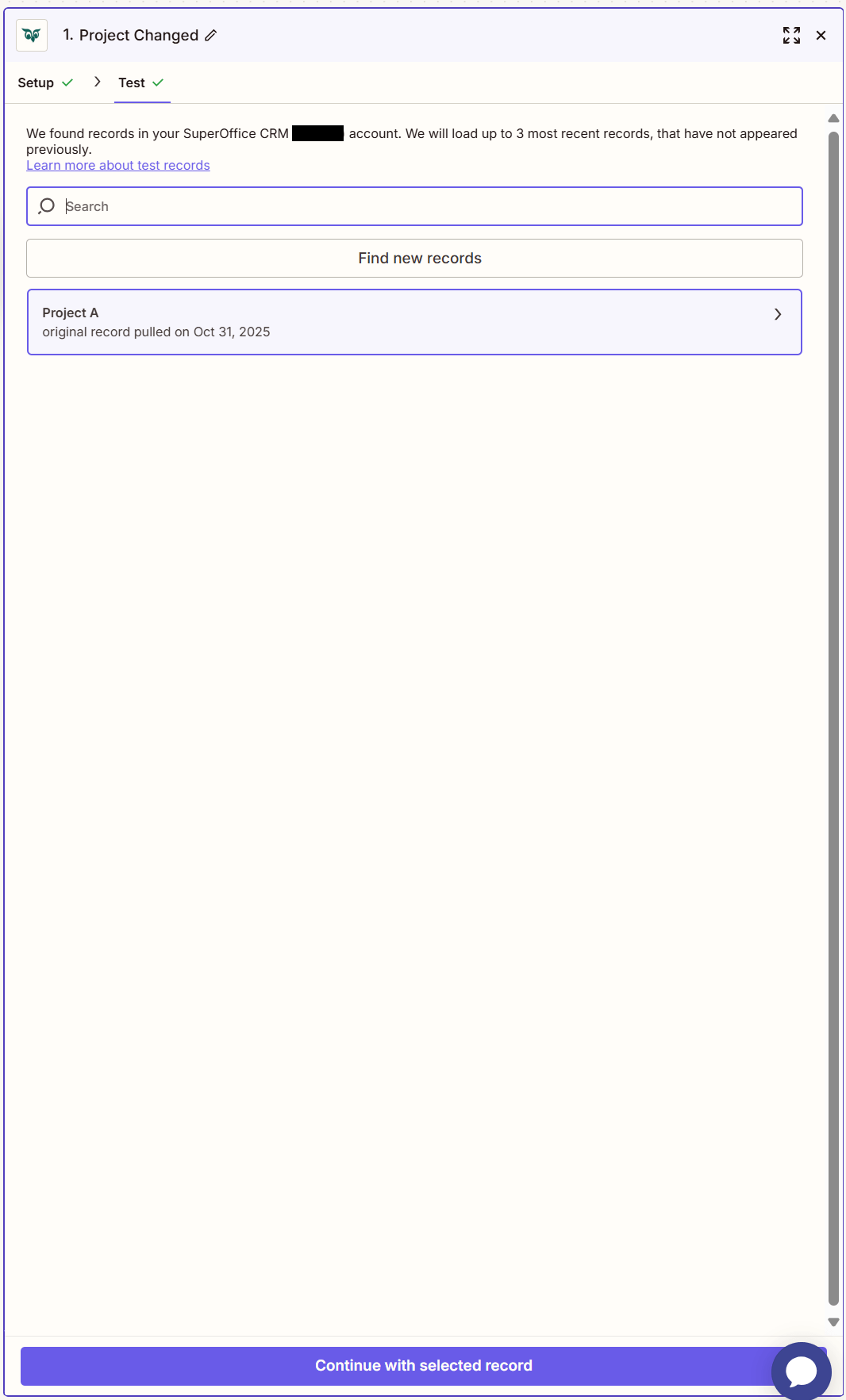
  • In the Trigger event section, select Project Changed.

    Zapier setup window showing the Project Changed trigger option -screenshot

  • Verify the trigger:

    Zapier test window showing successful trigger verification -screenshot

  • When the Project Changed trigger runs in SuperOffice CRM, the chosen action executes automatically.

  • Related actions and triggers:

    • Create Project action
    • Update Project action
    • New Project trigger
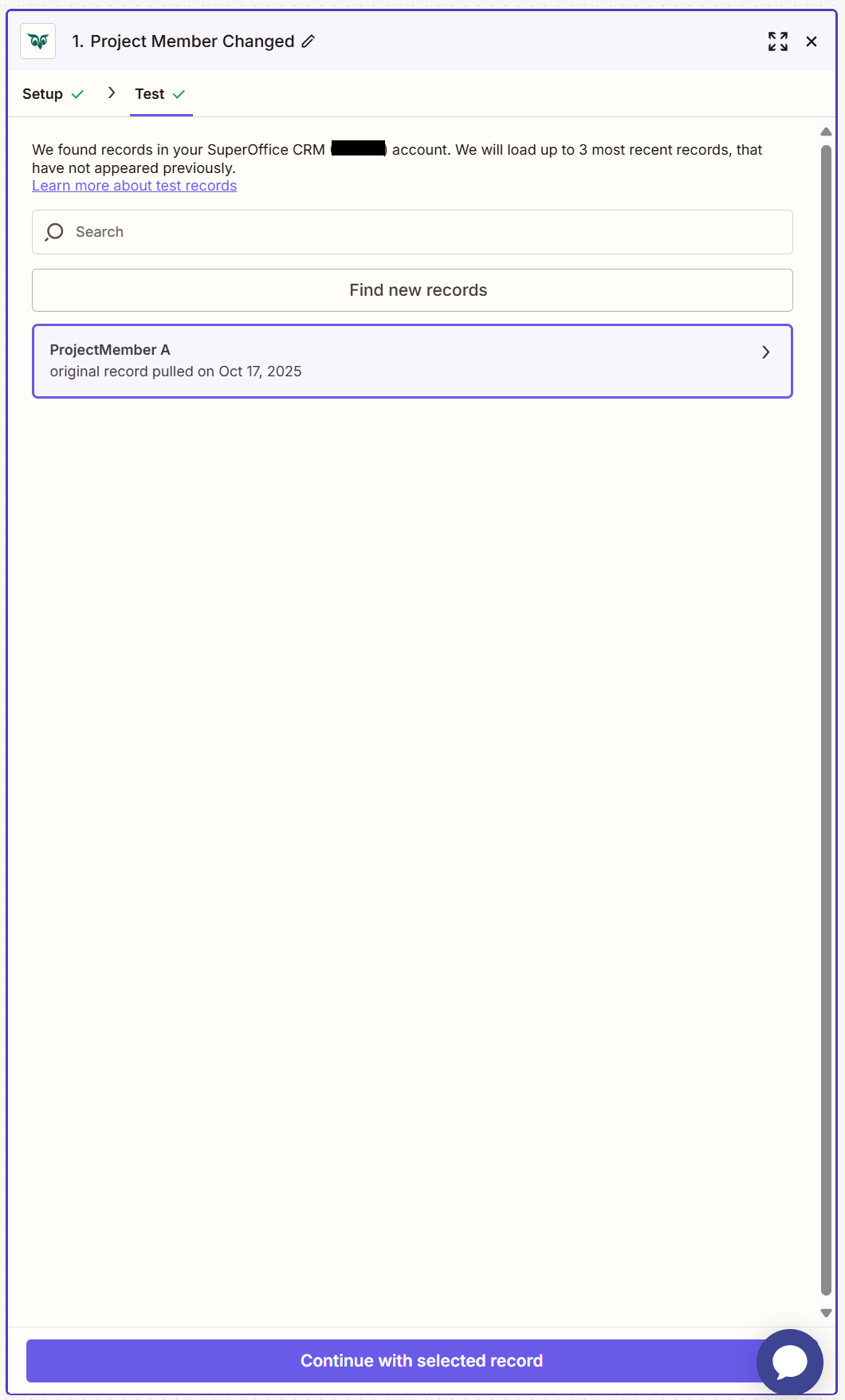
  • In the Trigger event section, select Project Member Changed.

    Zapier setup window showing the Project Member Changed trigger option -screenshot

  • Verify the trigger:

    Zapier test window showing successful trigger verification -screenshot

  • When the Project Member Changed trigger runs in SuperOffice CRM, the chosen action executes automatically.

  • Related actions and triggers:

    • Create Project Member action
    • New Project Member trigger
  • In the Trigger event section, select Sale Changed.

    Zapier setup window showing the Sale Changed trigger option -screenshot

  • Verify the trigger:

    Zapier test window showing successful trigger verification -screenshot

  • When the Sale Changed trigger runs in SuperOffice CRM, the chosen action executes automatically.

  • Related actions and triggers:

    • Create Sale action
    • Update Sale action
    • New Sale trigger

Related content

  • Create a Zap with SuperOffice CRM
In This Article
© SuperOffice. All rights reserved.
SuperOffice |  Community |  Release Notes |  Privacy |  Site feedback |  Search Docs |  About Docs |  Contribute |  Back to top