Request relations
Request relations allow you to link requests together to show connections between issues. This is useful when multiple requests are related to the same problem, when one request depends on another, or when you need to track hierarchical relationships between requests.
Note
Request relations are used to link requests to other requests. To define relationships between companies and contacts, see Company and contact relations.
Relation types
There are three types of request relations:
Related: A non-hierarchical connection between requests.
Parent: A request that has one or more child requests.
Child: A request that is linked under a parent request. Each request can have only one parent.
Use cases
Use related when requests are connected but do not have a hierarchy.
Multiple customers reporting the same problem When different customers independently report the same issue, link the requests as related. This provides a flat view of all affected customers and helps ensure consistent communication.
Requests containing multiple questions If a request contains unrelated questions, split it into separate requests for each department. Then link them as related to show they originate from the same context.
Use parent and child when requests have a hierarchical or dependency relationship.
Incident management with root cause tracking Create a parent request to track the underlying issue. Link each customer report as a child request. A parent request can have multiple child requests, but each request can have only one parent.
Managing dependencies When one request must be resolved before another can be completed, link them using a parent-child relationship to clearly show the dependency.
View request relations
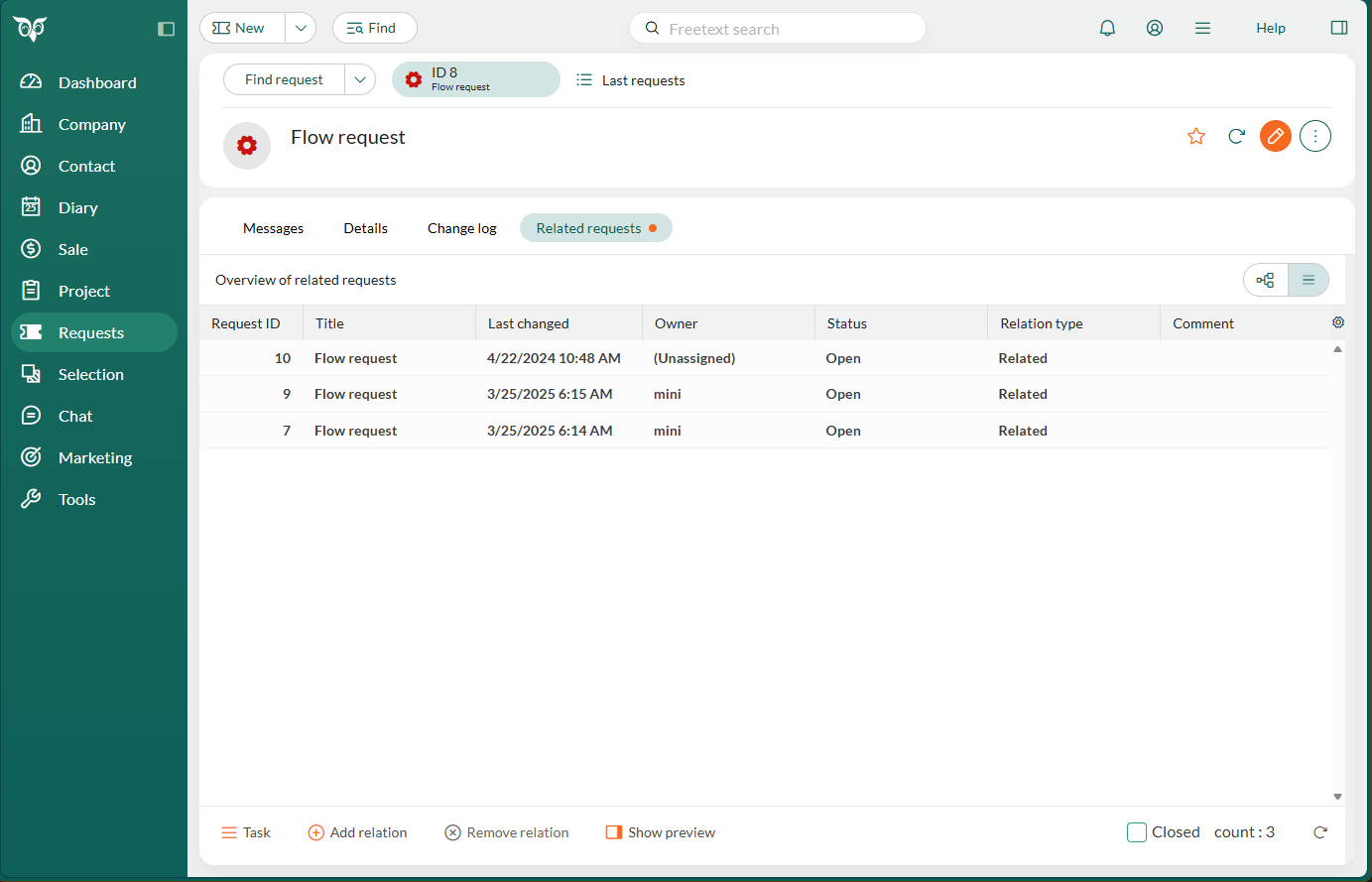
When a request has one or more relations, you can view them on the Related requests tab of the Request screen.
List view
Click to display relations as a list (default). The list view shows the following columns:
- Request ID
- Title
- Last changed date
- Owner
- Status
- Relation type
- Comment
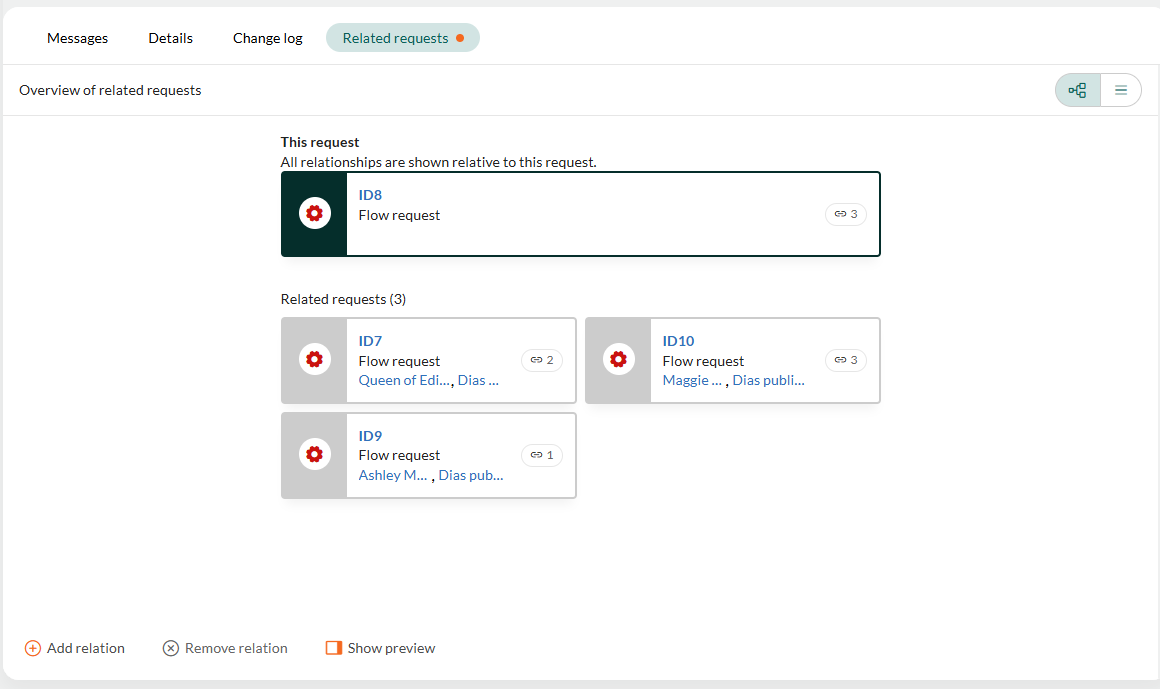
Tree view
Click to display relations in a hierarchical structure, making parent-child relationships easier to visualize:
Tip
The Related requests tab displays an orange indicator when the request has one or more relations, making it easy to identify linked requests at a glance.
Different perspectives
Relations are bidirectional. Both requests in the relation display the connection:
- If Request A is a parent of Request B, then Request B will show Request A as its parent.
- If Request A is related to Request B, then Request B will show it is related to Request A.
Add request relation
You can add a relation from the following locations:
From the Request screen
Open the request you want to link.
Select the Related requests tab.
Click Add relation.
In the Relation type field, select Related, Parent, or Child.
In the Link to section, select Link to existing (default).
Start typing in the search field to find the request you want to link. You can search by request ID, title, company, or contact.
Select the request from the list. You can hover over a request in the list to preview its details.
Optionally, add a comment explaining the relationship.
Click Relate to create the link.
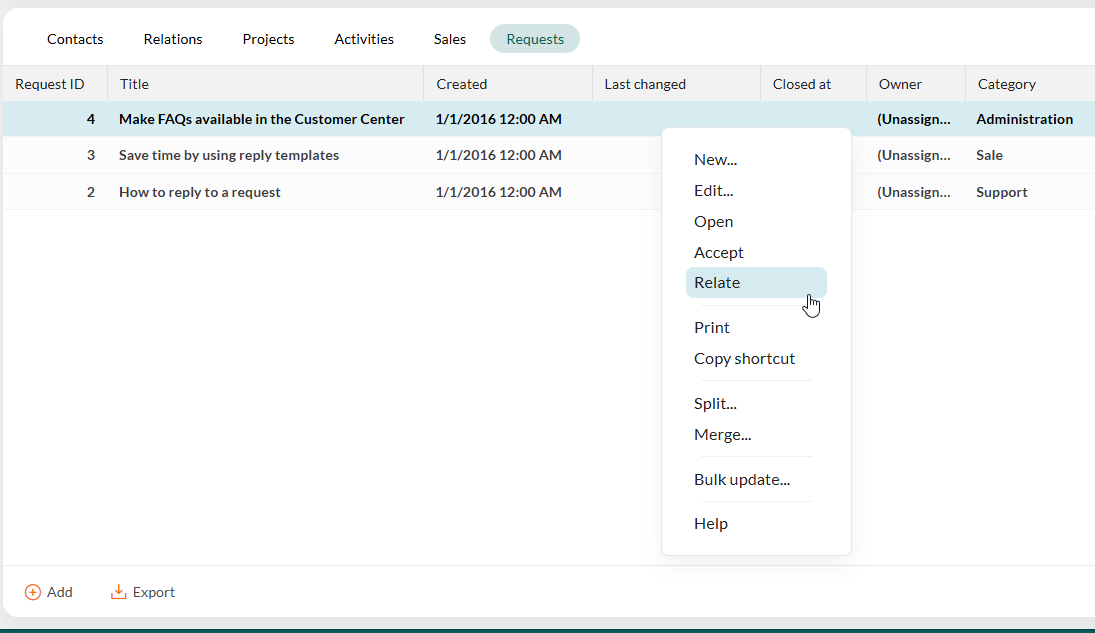
From the Requests section tab
Go to a Company, Contact, Sale, or Project screen.
Select the Requests section tab.
Right-click the request you want to create a relation from.
Select Relate from the context menu.
Follow steps 4-9 above to complete the relation.
Create new request as relation
Instead of linking to an existing request, you can create a new request while establishing the relation:
Follow the steps above to open the Relations dialog.
In the Link to section, select Create new request.
Fill in the request details.
Click Relate to create both the new request and the link simultaneously.
Remove request relation
Open the request and select the Related requests tab.
Find the relation you want to remove.
Click Remove relation at the bottom of the dialog, or right-click the relation and select Remove relation.
Confirm the deletion.
Removing a relation deletes only the link. The requests remain unchanged.
Troubleshooting
Remove relation button is not clickable
The Remove relation button is only active when you have selected exactly one relation. Make sure you have:
- Selected a single relation in the list
- Not selected multiple relations
Cannot add parent or child relation
Reason: A request can only have one parent. If the request already has a parent, you cannot assign another parent relationship.
Solution: Remove the existing parent relation first, or use a Related relation type instead, which allows multiple connections.
Cannot create relation
Possible reasons:
- Duplicate relation: The two requests are already linked. Check the Relations tab to see if the relation already exists.
- Circular hierarchy: You cannot create a parent-child relationship that would result in a circular reference (for example, Request A is the parent of Request B, and Request B is the parent of Request A).
Solution: Check existing relations and adjust your hierarchy structure to avoid circular dependencies.
Related content
- Split request
- Merge requests
- Requests section tab
- Company and contact relations
- Relation rules (Settings and maintenance)