Automate lead categorization
This task is done in Settings and maintenance and you must be an administrator.
Automating company category updates helps reduce manual work and ensures your data stays accurate. When the status of a sale changes or a lead status is updated, the related company can automatically be updated with the correct category.
You can configure the automation to run fully automatically or ask the user to confirm the change before it is applied.
Prerequisites
- The company's current category must belong to the Potential customer group to be eligible for automatic updates. See Company category and category group.
- For lead status-based automation, Lead status must be enabled for the company's current category.
Configure category automation rules
You can enable any or all of the following automation rules:
| Automation rule | Description |
|---|---|
| Update category when a sale is sold | Automatically updates the company category when a sale is marked as Sold. |
| Update category when a sale is lost | Automatically updates the company category when a sale is marked as Lost. |
| Update category when a sale is registered with the company | Automatically updates the company category when a new sale is created and linked to the company. |
| Update category when a lead status is set to | Automatically updates the company category when a contact's lead status is changed to a specific value, such as Qualified or Disqualified. Requires lead status to be enabled for the category. |
Steps
Open Settings and maintenance.
In the Navigator, select Workflow.
Select the Lead categorization tab. This screen displays the automation options.
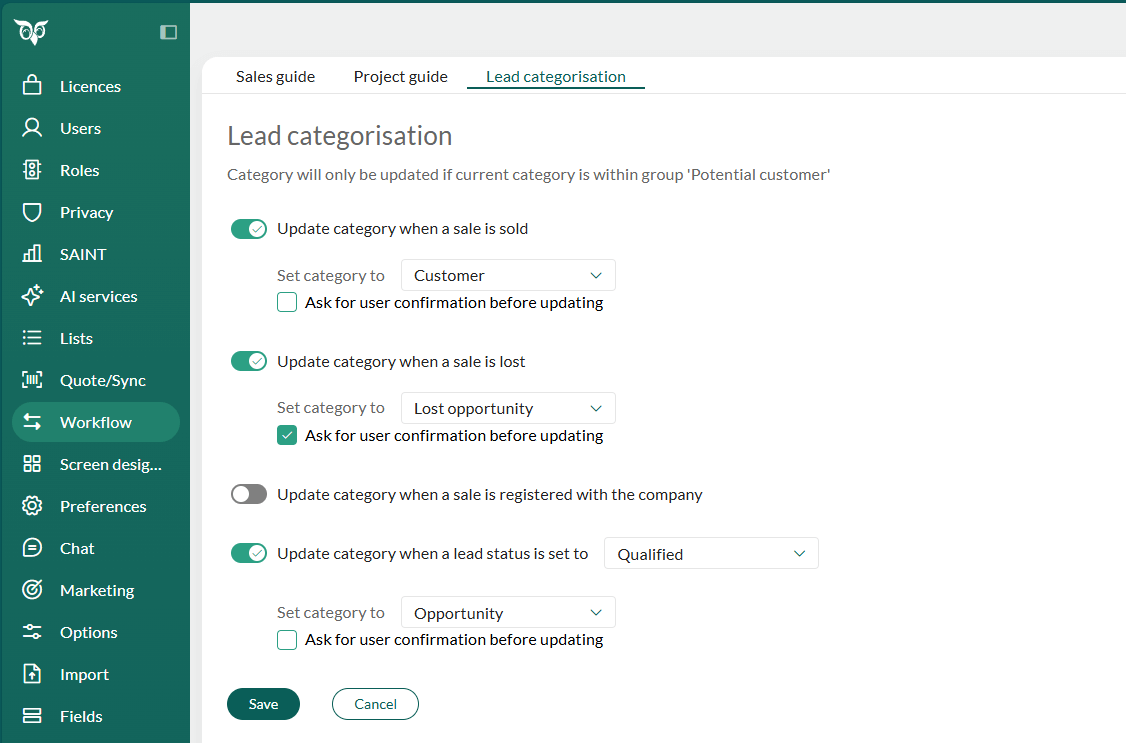
Enable the toggle for the rule you want to activate.
When you enable a toggle, additional options appear:
Set category to: Select the target category from the list. This is the category the company will be updated to when the condition is met.
You can select any category, regardless of its category group.
Ask for user confirmation before updating: Check this box if you want the user to confirm the category change before it is applied.
Leave it unchecked for fully automatic updates.
Repeat for any other rules you want to enable.
Click Save to apply your changes, or click Cancel to discard them.
Note
The Save button is enabled only after you have selected a category in the Set category to field for all enabled toggles.
When to use user confirmation
Decide whether category updates should be automatic or require user confirmation based on your business needs:
Fully automatic: Best for straightforward lead-to-customer workflows where category changes are predictable and consistent. For example, automatically moving a lead to the Customer category when a sale is marked as sold.
User confirmation: Recommended when category changes require judgment or when multiple categories may apply. For example, if you work with multiple customer tiers (VIP, A, B, C), prompting the user ensures the correct category is selected.
When Ask for user confirmation is enabled, the user will see a dialog suggesting the category change. They can accept the suggestion or choose a different category before saving.
Example: Automate lead-to-customer transition
A common use case is to automatically update a lead to a customer category when a sale is sold:
Enable Update category when a sale is sold.
Set Set category to = Customer.
Leave Ask for user confirmation before updating unchecked for full automation.
Click Save.
Now, whenever a sale linked to a company in the Potential customer group is marked as sold, the company category will automatically change to Customer.