Archive reminder
Note
The archive reminder feature is not yet available. This feature is expected to roll out in late July or early August 2026.
The archive reminder helps ensure that emails and meetings are connected to the correct company, contact, or other SuperOffice records before they are sent. When SuperOffice for Outlook detects that the required information is missing, it displays a reminder and lets you decide how to proceed.
The reminder is only shown if Archive reminder is enabled in your SuperOffice for Outlook profile settings.
Note
Microsoft defines a meeting as a calendar item where you invite other people or reserve resources.
How it works
The archive reminder can appear when sending emails or meeting invites.
Emails
When you click Send on a new email, reply, or forward, and the email is not configured to be archived in SuperOffice, an archive reminder appears.
The dialog reads:
This email is ready to send, but it is not set to be archived in SuperOffice. Archive it now so the communication is saved with the right company or contact, or send it without archiving.
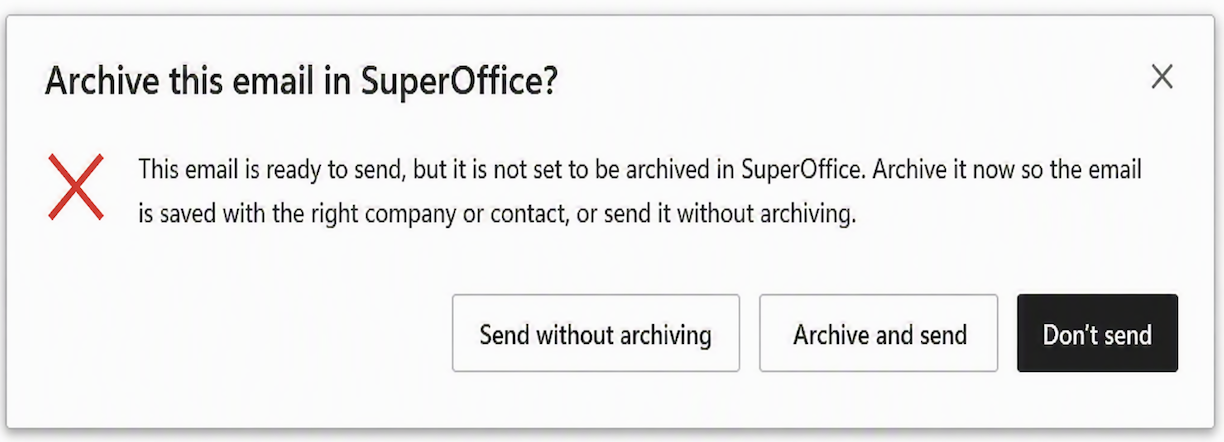
You have three options:
| Option | What happens |
|---|---|
| Don't send | Sending is cancelled so you can review or update the email. SuperOffice for Outlook will not open automatically. |
| Archive and send | SuperOffice for Outlook opens so you can select the company, contact, sale, project and other information before sending the email. |
| Send anyway | The email is sent without being archived in SuperOffice. |
If you choose Archive and send, complete the archive information in SuperOffice for Outlook, and then send the email, the reminder will not appear again for that email.
Meetings
When you click Send on a meeting invitation and the required SuperOffice information is missing, an archive reminder appears. The reminder helps ensure that the meeting is connected to the correct company, contact, project, sale, or other SuperOffice records before it is sent. To continue, open SuperOffice for Outlook, complete the required information, and click Save before sending the meeting invitation.
The dialog reads:
This meeting is missing SuperOffice information. Open SuperOffice for Outlook to add and save the required information before sending, or send the meeting invitation without saving it.
You have three options:
| Option | What happens |
|---|---|
| Don't send | Sending is cancelled so you can review or update the meeting invite. SuperOffice for Outlook will not open automatically. |
| Open SuperOffice for Outlook | SuperOffice for Outlook opens so you can select the company, contact, sale, project and other information before sending the meeting invite. Ensure to click Save in SuperOffice for Outlook, before sending the meeting invite. |
| Send anyway | The meeting invitation is sent without adding the missing SuperOffice information. |
Note
For meeting invites, SuperOffice information is first stored on the Outlook appointment when you click Save in SuperOffice for Outlook. Synchronizer then synchronizes this information to SuperOffice.
When the archive reminder appears
The reminder appears based on your personal settings. By default, it is shown for:
- New emails
- Replies
- Forwards
- Meetings
You can adjust these preferences – for example, to only be reminded when sending to recipients outside your organization. See Settings for details.
The reminder does not appear if:
- The email or meeting already contains the required SuperOffice information.
- The main Remind me before sending emails or Remind me before sending meetings toggle is turned off in Settings.
- Your Outlook client does not meet the minimum requirement (mailbox requirement set 1.12).
Configure the reminder
You can turn the reminder on or off and configure which actions trigger it.
Open the SuperOffice for Outlook side panel.
Click the gear icon to open Settings.
Scroll to the Archive reminder section and adjust your preferences.
See Settings – Archive reminder for a full description of each option.