Add CRM data to Outlook event
Use SuperOffice for Outlook to add CRM data to meetings and appointments in Outlook.
Note
You need Synchronizer for SuperOffice for this functionality.
Microsoft defines a meeting as a calendar item where you invite other people or reserve resources. This article uses event as the general term for calendar items in Outlook, matching the New event button.
New event
Select New event in Outlook.
Add persons to the Invite attendees field in Outlook.
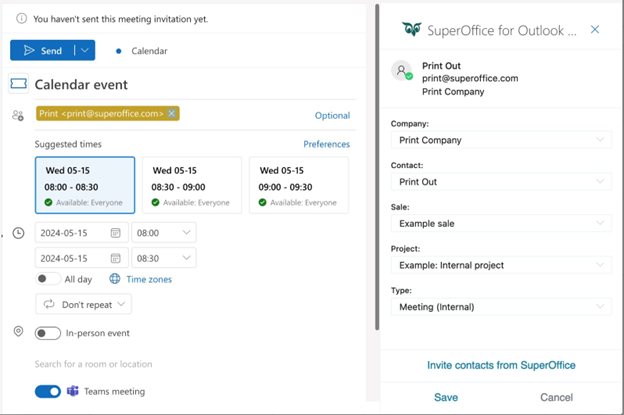
- If the email or contact is stored in SuperOffice, their contact information will appear, and the Company and Contact fields will auto-fill.
- If a contact is found but the Contact field is not auto-filled, multiple contacts with the same email exist in SuperOffice. Click Select Contact and choose the correct contact.
- If no contact is found, you can add a new contact to SuperOffice: Select Click to add new contact and enter the required details.
Adjust the event details as needed.
Press Save to finalize the event.
Note
You must press Save in SuperOffice for Outlook to save the CRM data to the event. If you send the event without pressing Save, the CRM data is not saved to SuperOffice.
Existing event
Open an existing event in Outlook.
If SuperOffice CRM data exists for the attendees, it is displayed.
- If a contact is found but the Contact field is not auto-filled, multiple contacts with the same email exist in SuperOffice. Click Select Contact and choose the correct contact.
- If no contact is found, you can add a new contact to SuperOffice: Select Click to add new contact and enter the required details.
If no data exists, the add-in attempts to find the organizer in SuperOffice CRM.
Follow the same steps as for a new event to modify or save the event.
Note
You must press Save in SuperOffice for Outlook to save the CRM data to the event. If you send the event without pressing Save, the CRM data is not saved to SuperOffice.
Additional information
View contact details
To view additional CRM data:
- In the SuperOffice panel, locate the contact.
- Hover over the contact and select Open in CRM.
SuperOffice CRM opens with detailed information about the contact.
Meetings created in SuperOffice
Calendar events created in SuperOffice and synchronized to Outlook are view-only in Outlook.
- These events may contain information indicating they originate from SuperOffice.
- Editing or deleting must be done in SuperOffice.
- You do not need to press Save, as the event is already stored in SuperOffice.
Shared mailbox calendars
You can also work with calendar events from shared mailboxes in Outlook.
- Open the event from the shared mailbox.
- Open SuperOffice for Outlook.
- Add or update CRM data.
- Press Save.
Note
You must press Save in SuperOffice for Outlook to save the CRM data to the event. If you send the event without pressing Save, the CRM data is not saved to SuperOffice.
Type
You can use the Type field to set the meeting type.
- This value is saved with the event and synchronized to SuperOffice.
- It can be used to categorize meetings for reporting and filtering.
Notes
- Calendar events synchronized from SuperOffice are view-only in Outlook, but CRM information is still available.
- Contact matching is based on participants and organizer.