Send and archive
Audience:
Some tooltip text!
• 1 minute to read
• 1 minute to read
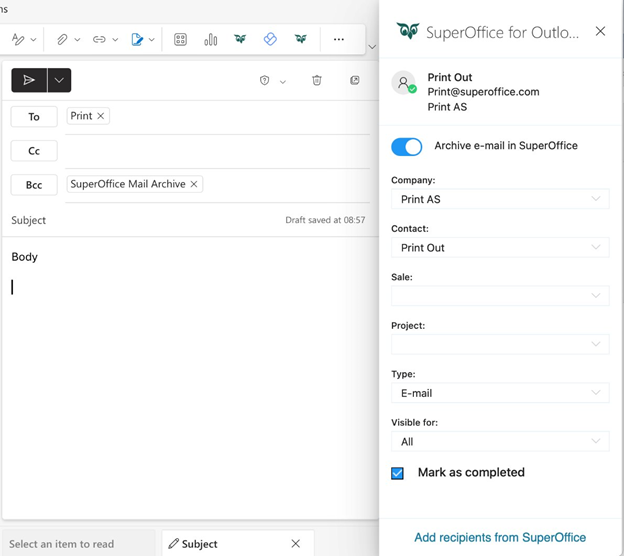
To send an email and automatically archive it to SuperOffice, follow these steps:
Select New mail in Outlook.
Open SuperOffice for Outlook (if not already pinned).
Ensure the Archive email in SuperOffice toggle is enabled.
Note
Bcc to SuperOffice Mail Archive is required to ensure the email is archived in SuperOffice.
Add recipients to the To field. If the first recipient's email is known to SuperOffice, the Company and Contact field will auto-fill.
Fill in any missing information or make adjustments as needed.
Click Send to both send the email and archive it to SuperOffice.
Note
The Visible for drop-down is only available to users whose administrator has enabled the required license.
For more details, see Admin - User Management - Visibility.