Manage fonts for forms
Consistent typography enhances readability and trust. By managing the fonts available for your forms, you can ensure that all forms align with your brand guidelines and design standards.
Where to manage fonts
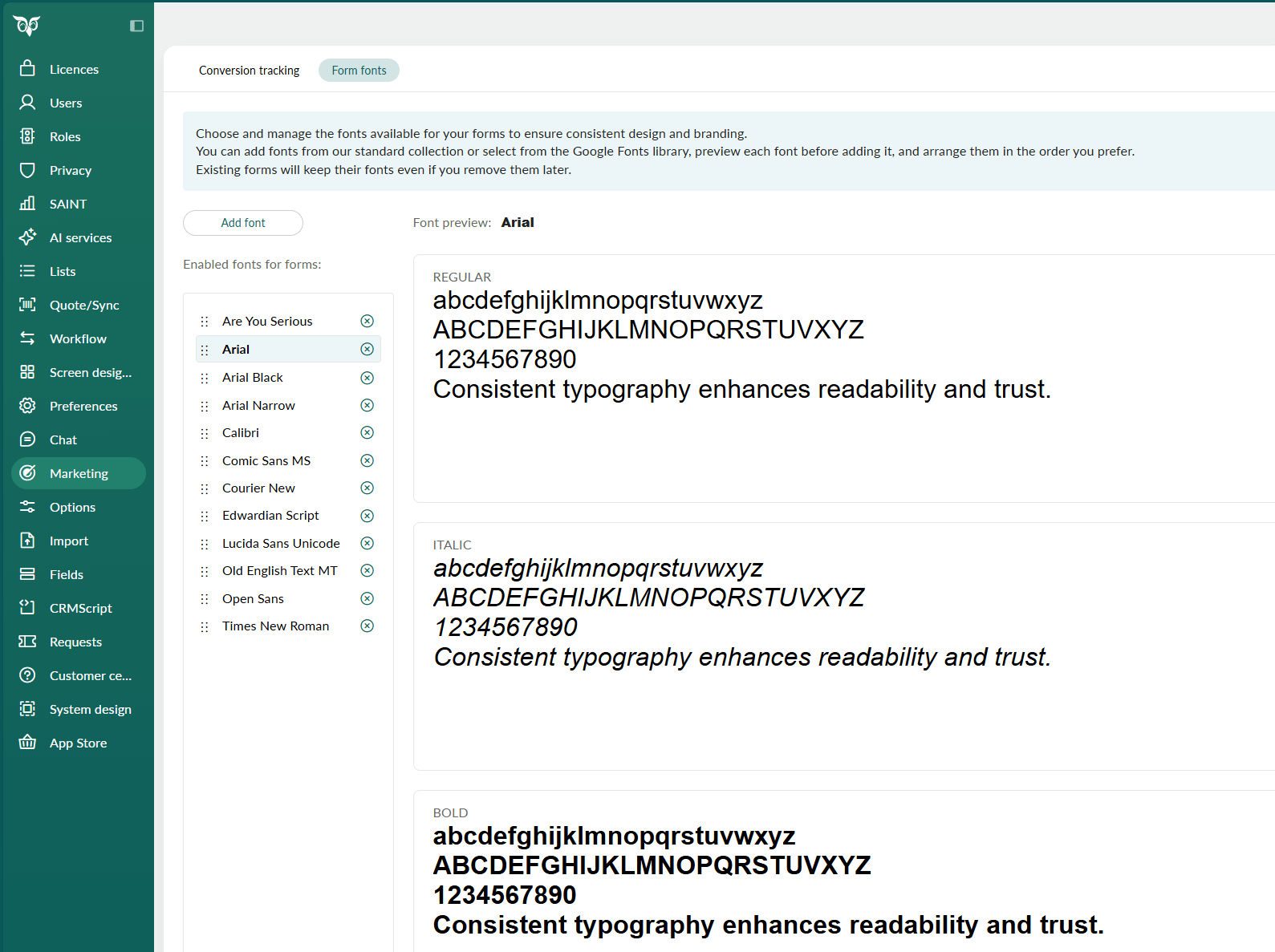
Font management is done in Settings and maintenance and requires administrator rights. The fonts you configure here are available when styling forms in SuperOffice Marketing. They are not supported in mailings because not all Google Fonts are email-safe.
To access font management:
- Go to Settings and maintenance.
- Select Marketing from the navigator.
- Select the Form fonts tab.
Available fonts
Standard collection: A set of default fonts is enabled out of the box. These are web-safe fonts that work reliably across all browsers and devices.
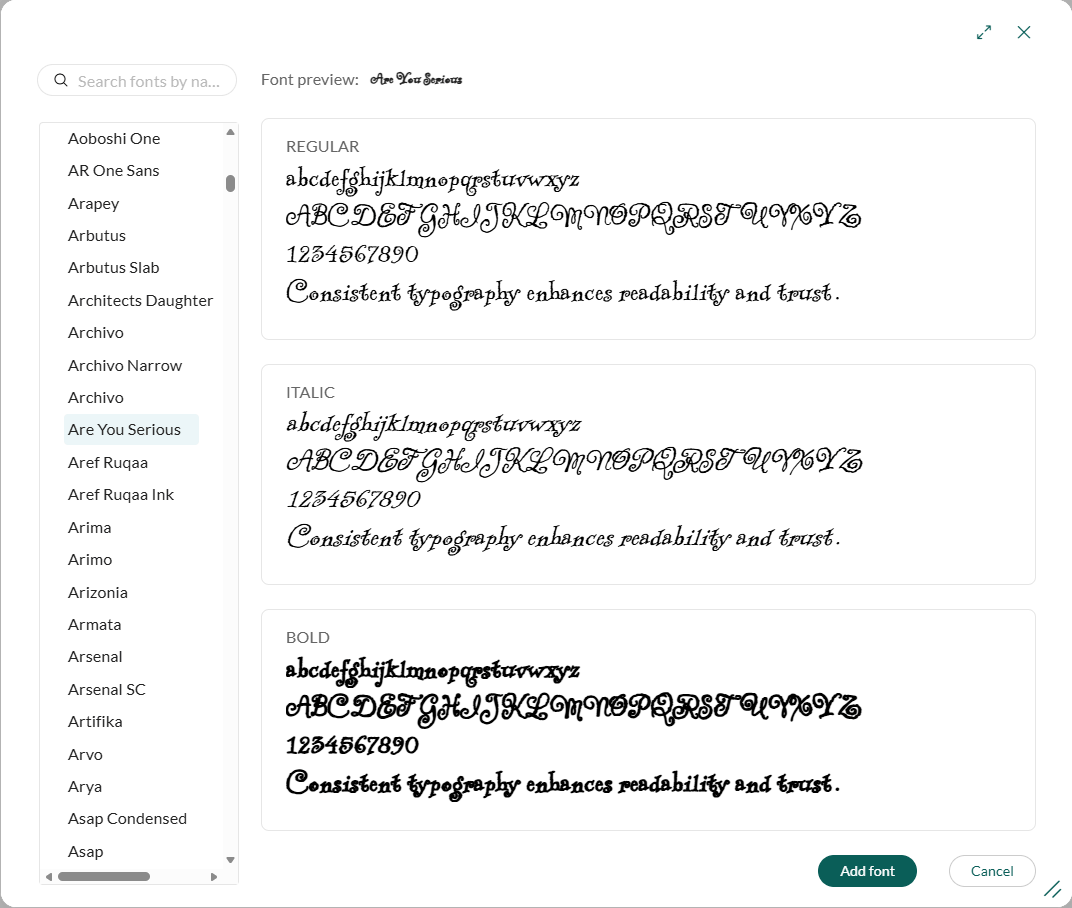
Google Fonts library: You can add fonts from the Google Fonts library to expand your design options. These fonts are hosted by Google and loaded when the form is displayed.
Add font from Google Fonts library
To expand your font options beyond the standard collection:
- Click the Add font button.
- Browse or search for a font by name.
- Preview the font in regular, italic, and bold styles to ensure it meets your needs.
- Click Add font to include it in your enabled fonts list.
Remove a font
To remove a font from the available options:
- Locate the font in the enabled fonts list.
- Click the remove icon () next to the font name.
Note
Forms that already use the removed font keep their font settings. The font is no longer available for new forms or when editing other forms.
Organize fonts
You can reorder fonts to make the most relevant options easier to find:
- Click next to a font name.
- Drag the font to the desired position in the list.
- Release to apply the new order.
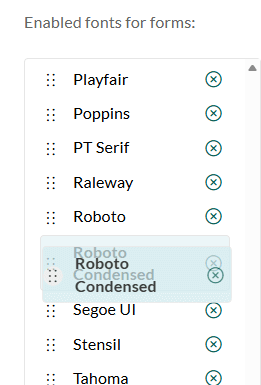
Fonts appear in this order in the font dropdown when editing forms.
Font preview
In the Form font tab, you can preview each enabled font. The preview shows:
- Regular
- Italic
- Bold
- Sample text: "Consistent typography enhances readability and trust."