Settings and maintenance 11.9 update
Marketing - Add new Google fonts to form fonts
Manage the fonts available for your forms in Marketing to maintain consistent design and branding. You can add fonts from our standard collection or choose from the Google Fonts library. Each font can be previewed before adding, and the order can be adjusted to suit your needs. Fonts already used in existing forms will remain in place even if they are later removed from the list.
Go to Marketing in Settings and maintenance, then select the Form fonts tab. Click Add to select a font. A preview will show how the font appears before you add it to your collection.
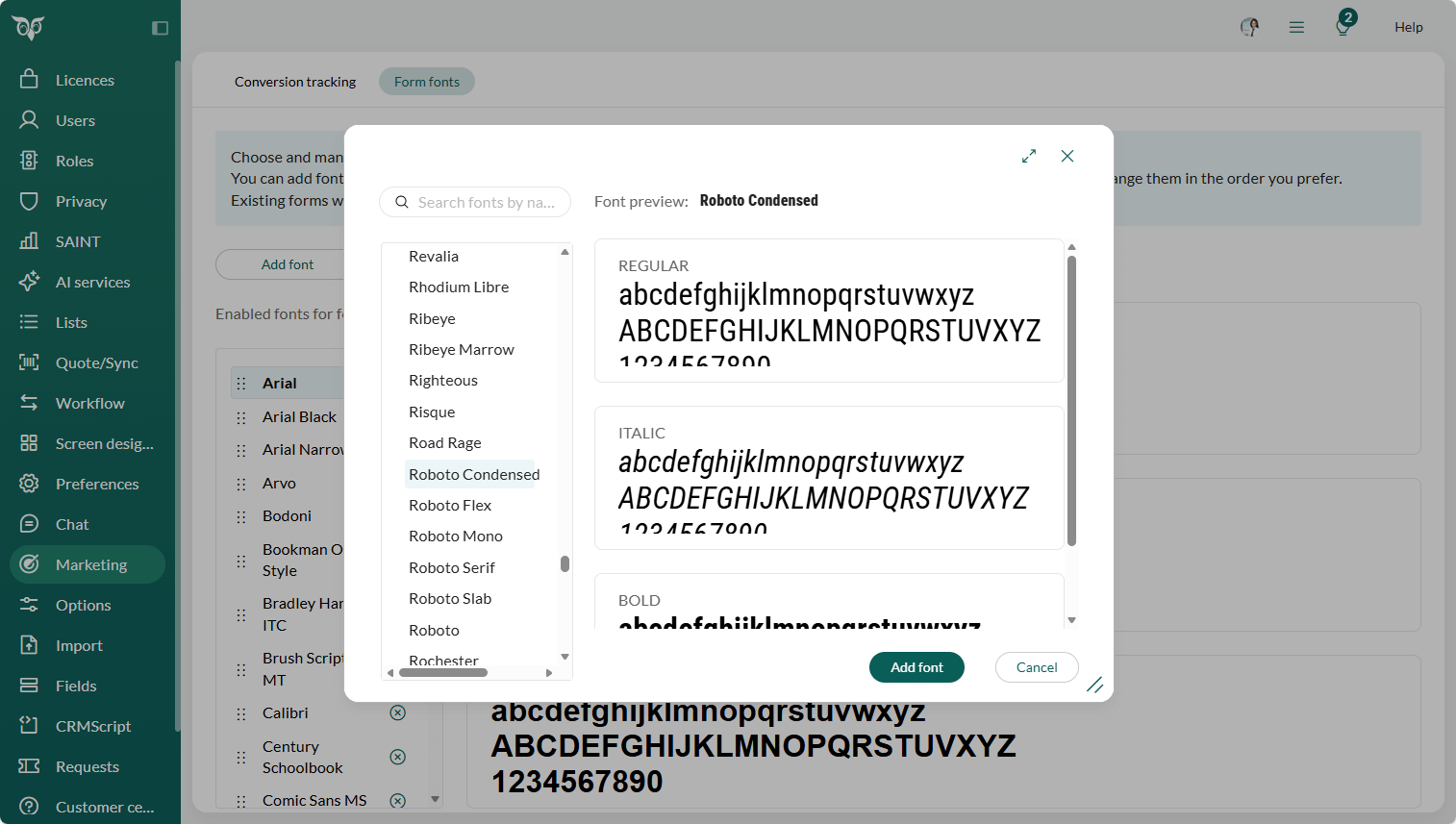
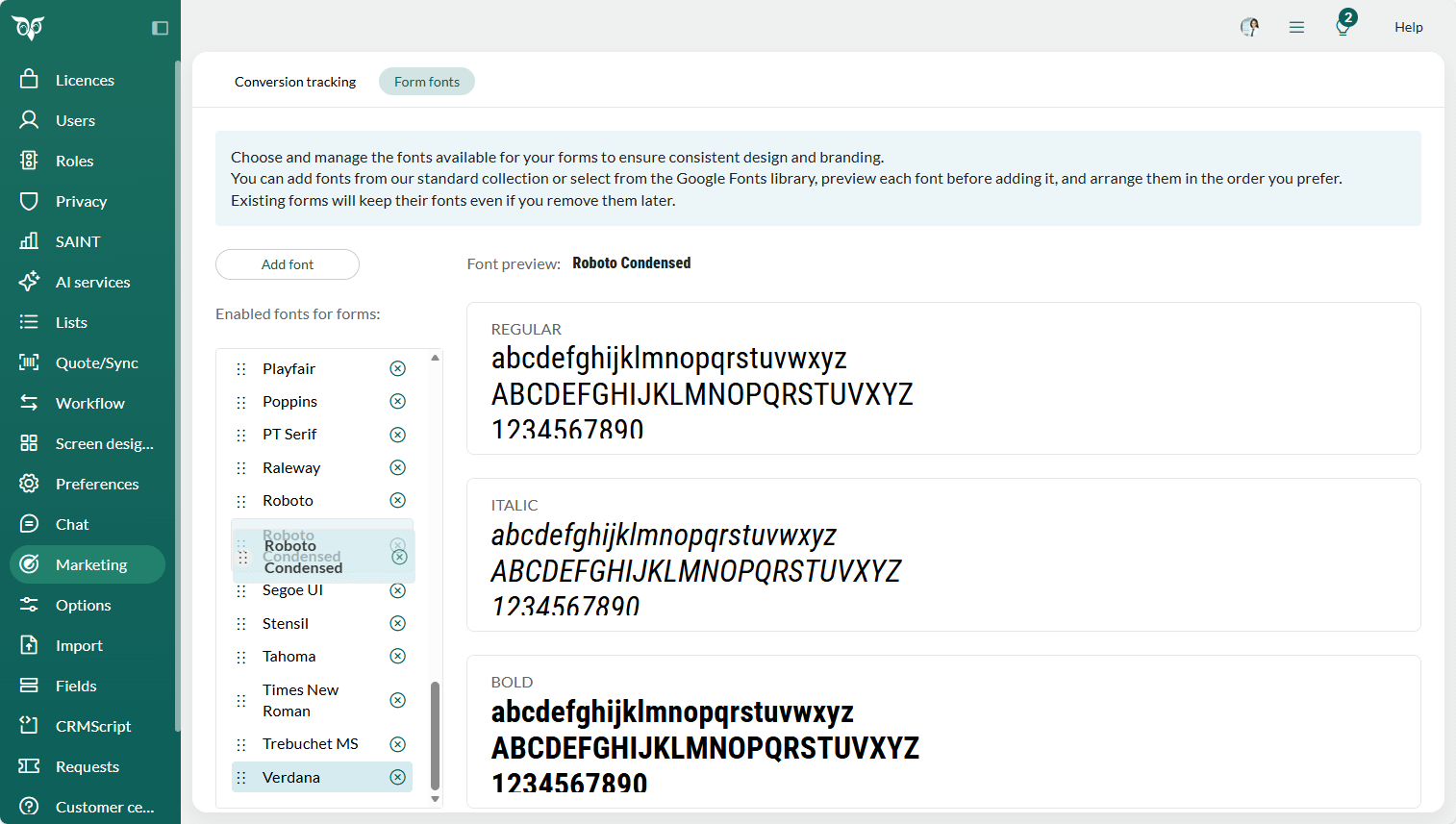
Newly added fonts appear at the bottom of the list. You can change the rank of a font by dragging and dropping it to the wanted rank in the list.
Tip
Reorder the fonts to place your company's brand fonts at the top, making them easier for users to find.
Read more about managing fonts for forms.