Create a SuperOffice CRM Request Message Attachment action
Some tooltip text!
• 1 minute to read
• 1 minute to read
Steps
-
On the Zaps page, click Create. Then click on the Trigger step and choose the event that will start a Zap.
Click on the Action step to set up app, event, and account:
- In the Action event section, select Create Request Message Attachment

Important to note that this step must be performed after the Create Request Message Action.
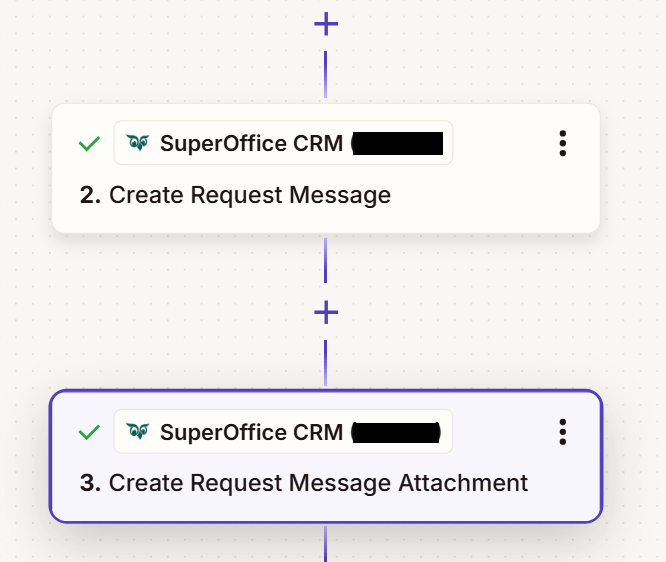
Click Continue.
The value set for Request Message Id should be the Message Id from previous Create Request Message Action step.
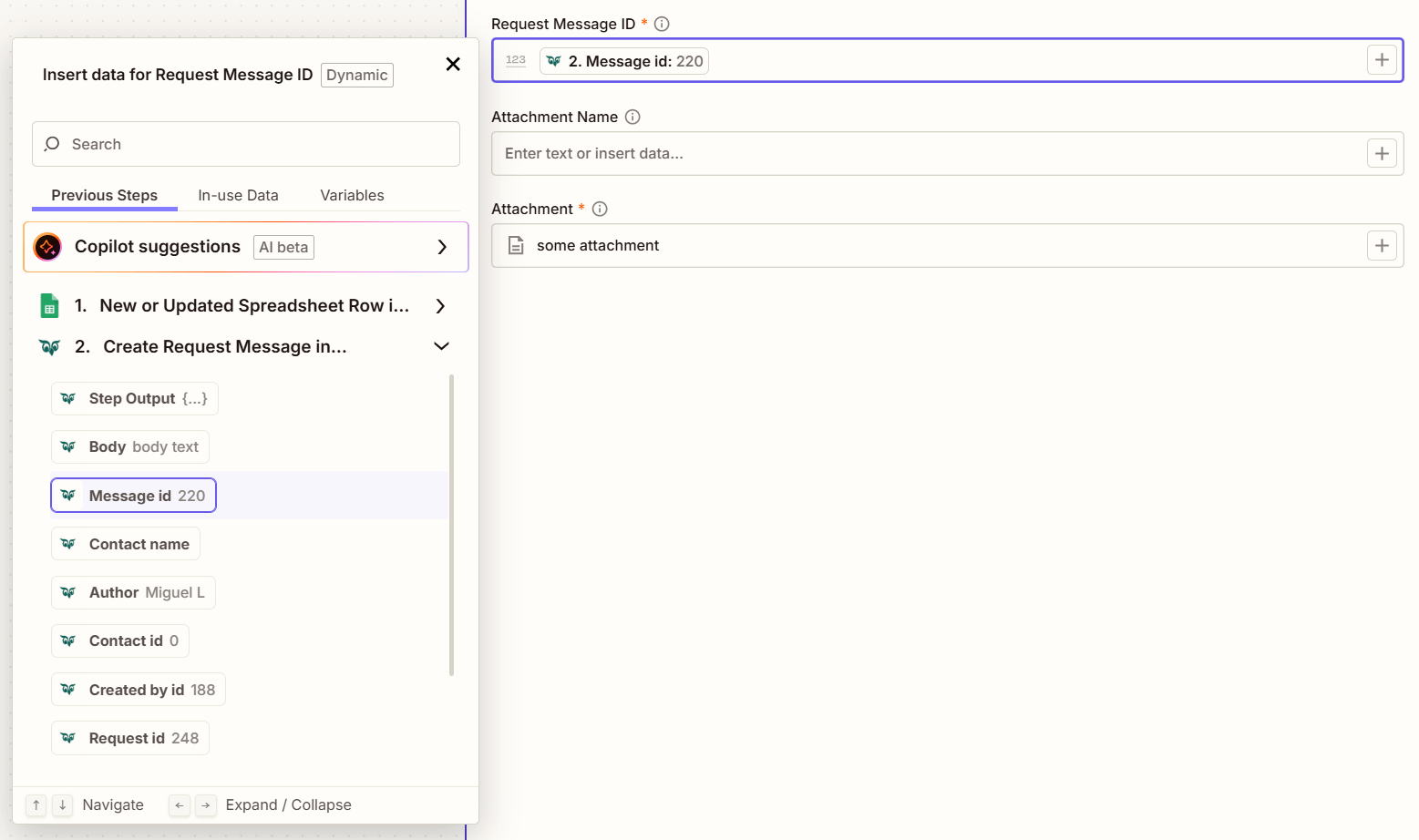
Fill out the mandatory fields Request Message ID, Attachment and optionally other fields.
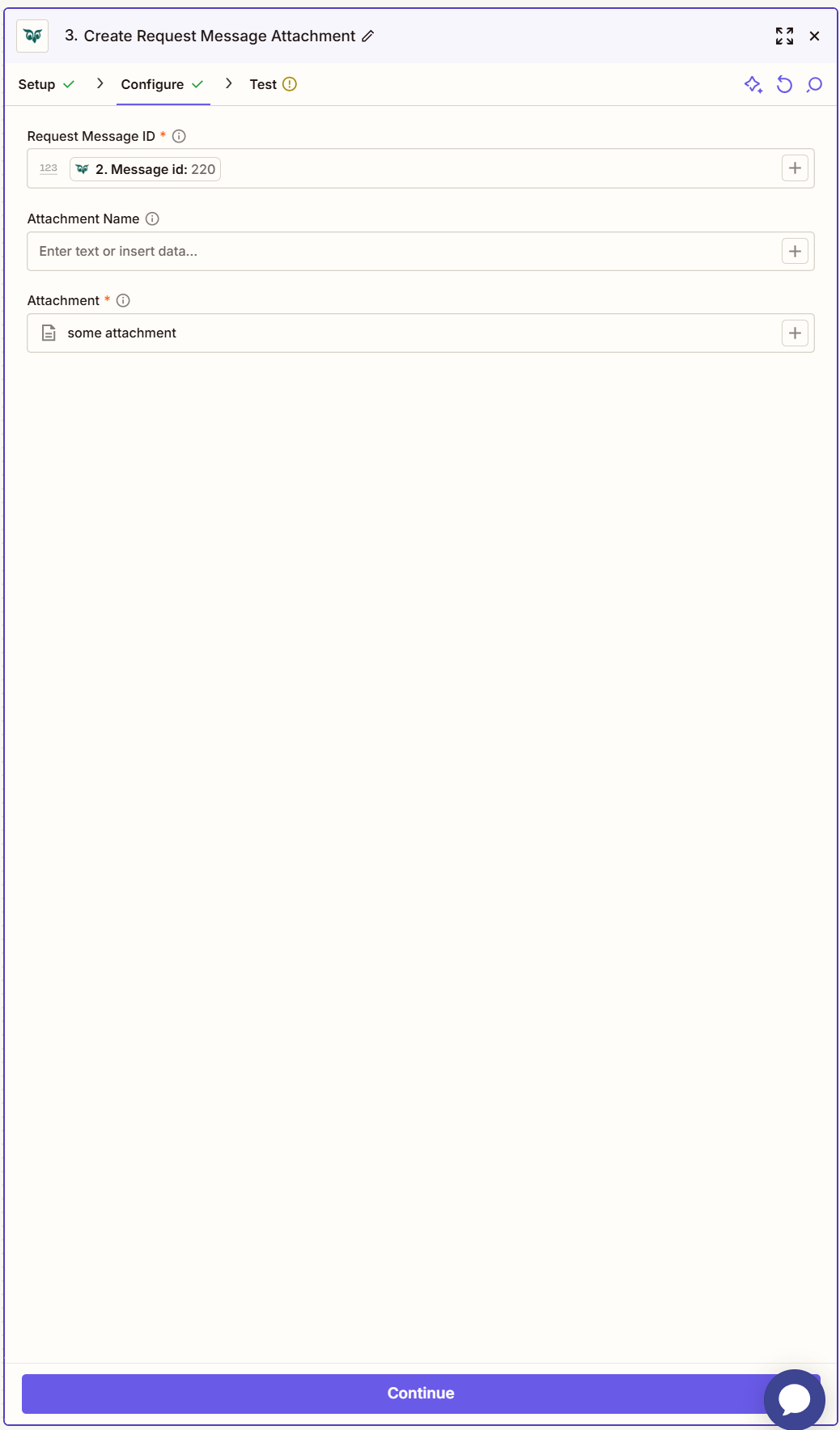
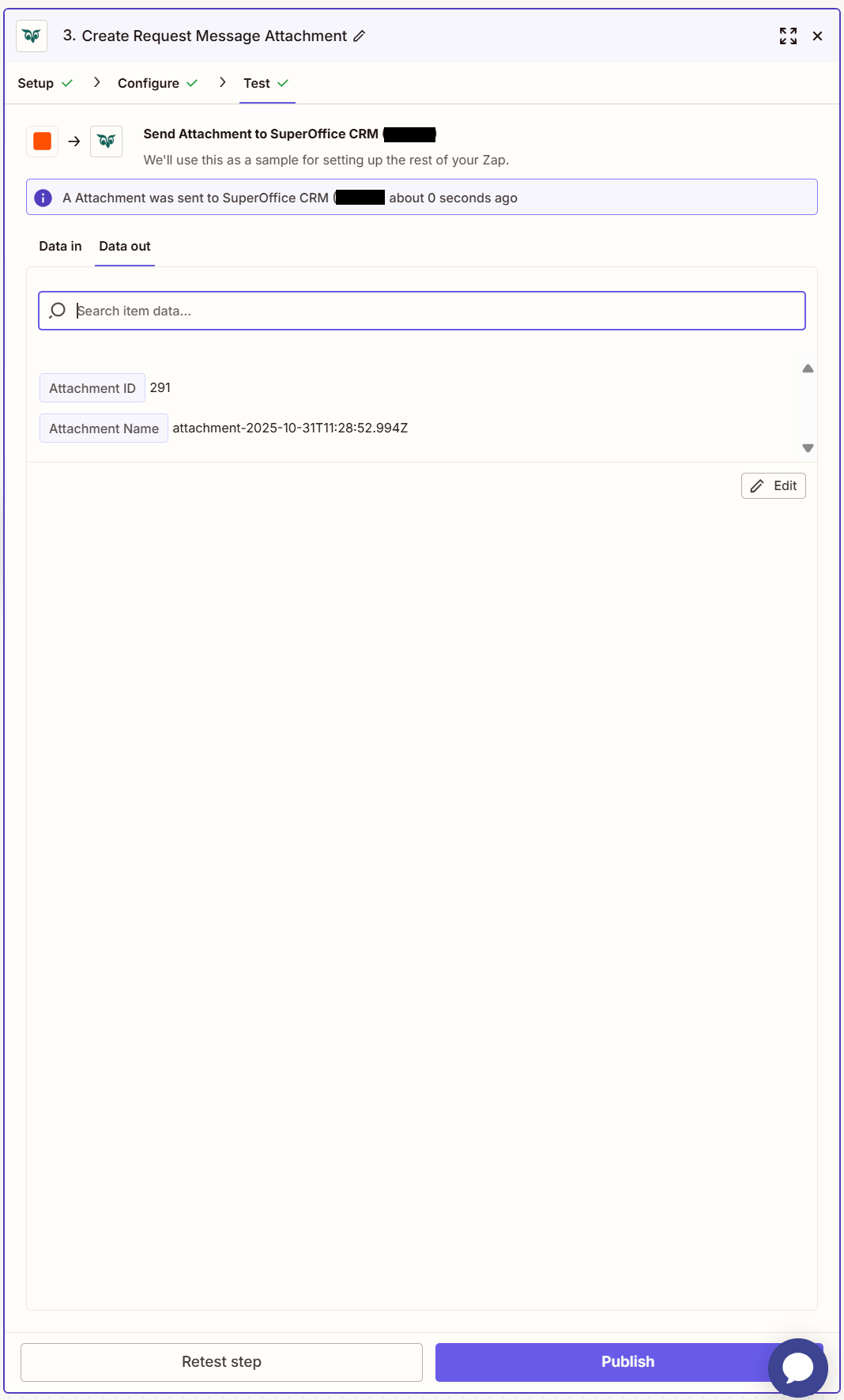
Click Test step to check that the action works.
If the above steps were configured correctly, the response should consist of Attachment ID and Attachment Name.