Troubleshooting WebTools
By understanding how SuperOffice WebTools works, it is easier to troubleshoot issues and to have a common ground when reporting and discussing wishes and issues.
I'm running single sign-on, but the credential window pops up many times
Using single sign-on delegates the authentication to your domain controller (or the component that acts as the authentication server). Authentication will fail if the password on the local machine is different than the password stored centrally (hint: NTLM password hashes). It will also fail if the account has been locked.
The document dialog opens instead of WebTools when I select document in archive
This is often caused by WebTools not being properly configured. Enable logging to gather diagnostic information.
Alarms are not working as expected
If alarms are not showing or are showing at the wrong time, check the WebTools preferences.
If the option Show alarm for all appointments n minutes before is enabled in WebTools, this setting overrides the alarm setting in SuperOffice CRM.
To change this:
Right-click the WebTools icon in the system tray.
Select Preferences.
Adjust or disable the Show alarm for all appointments setting.
Logging
Web Extensions depends on a constant connection to the CRM Server to work properly. If you are having connectivity issues, turn on logging to troubleshoot.
Windows
Tip
This is the file support usually will ask for.
Open the Registry. The user needs a write permission to the file.
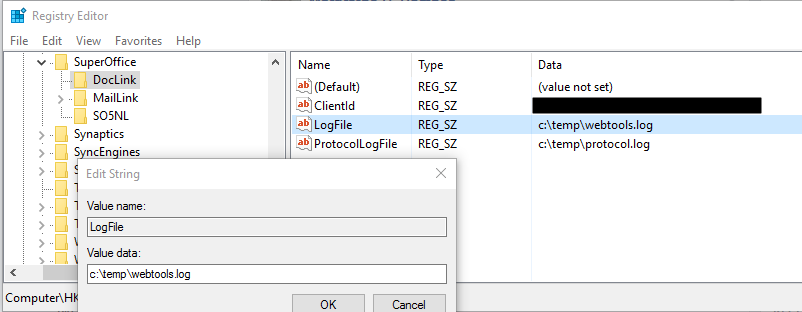
Add a new String value under HKCU\Software\SuperOffice\DocLink:
- Value name = LogFile
- Value data = The full path to a log file where it should write diagnostics. User running WebTools needs to have write permission to this file and folder.
Note
A restart of WebTools is often necessary for applying the registry settings.
Mac
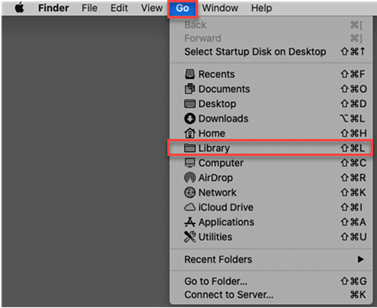
Click Go then Library.
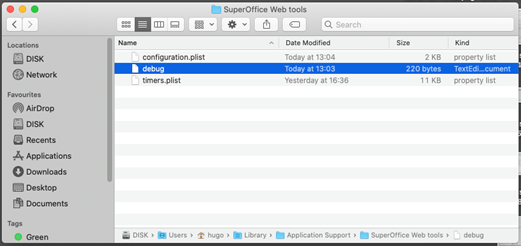
Navigate to Application Support folder then SuperOffice WebTools. Then create a new text file without an extension, call it debug and move it to the folder SuperOffice WebTools. Restart WebTools.
Open a Console
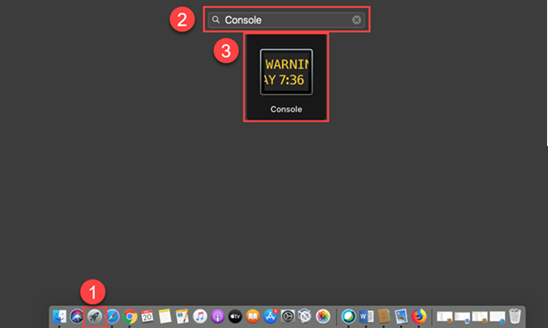
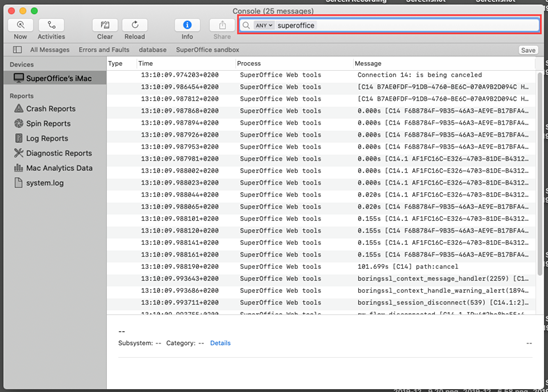
In the console dialog search field fill in SuperOffice and click Save. The information should be saved in the debugging file. If it doesn't, select all the entries and right-click and click copy then paste it in the debugging file.