Connect your accounts
Available for new SuperOffice Online customers from 11.11. Rolling out gradually to all SuperOffice Online customers from 11.13. Not available for onsite installations.
As a new user, or when setting up a new computer, you should connect your email account and document handler to SuperOffice. This lets you:
- Send emails and automatically archive outgoing messages in SuperOffice, making all customer communication available to your colleagues.
- Send meeting invitations to external recipients and receive invitations from others.
- Create, open, and edit documents directly from SuperOffice.
Open the wizard
- Click Personal settings in the upper-right corner.
- Select User setup.
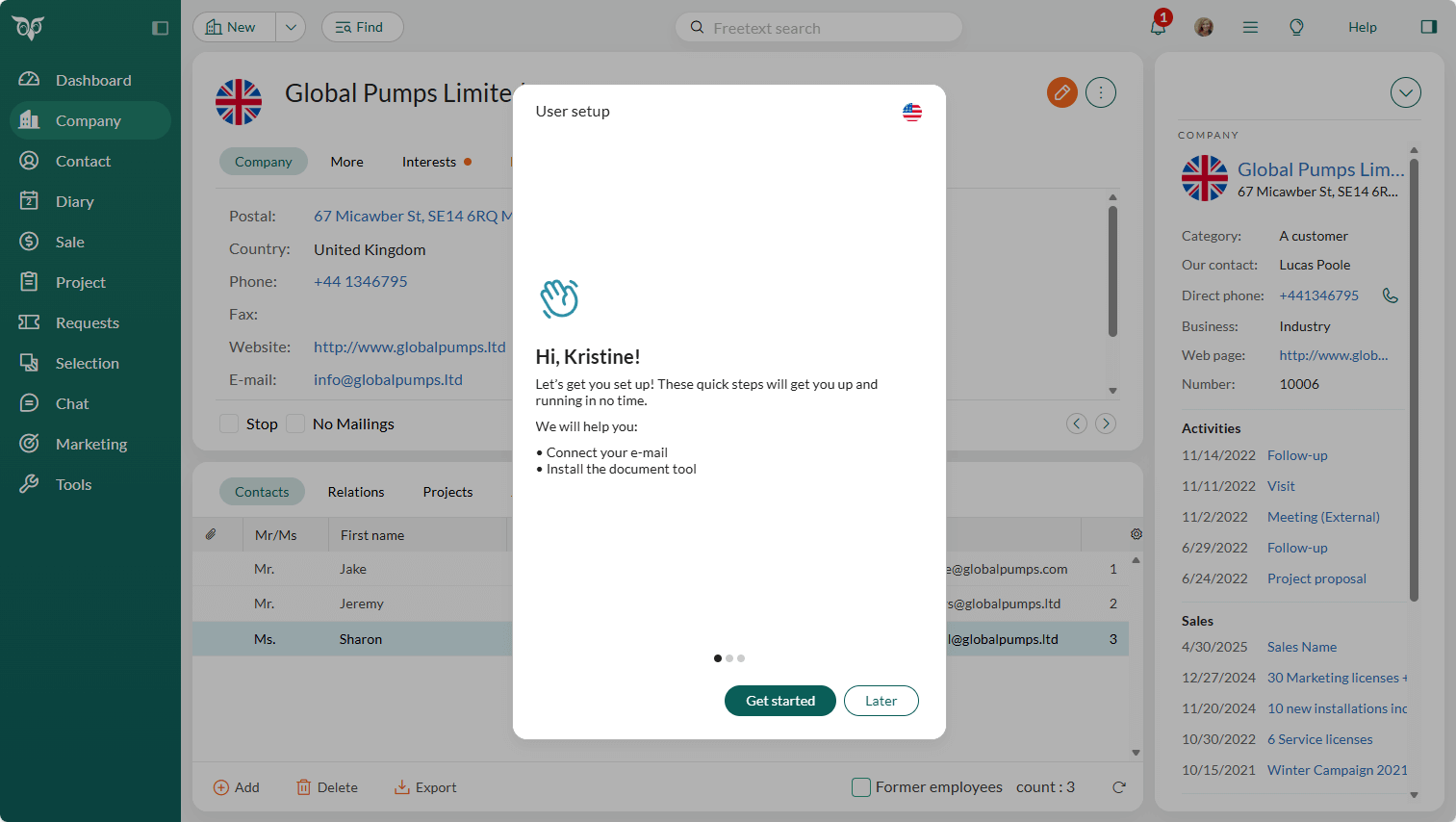
The wizard guides you through three steps.
Step 1: Overview
The first screen summarizes what the wizard will help you set up. Click Next to proceed.
Step 2: Connect your email account
Click Connect and follow the prompts to validate your login credentials.
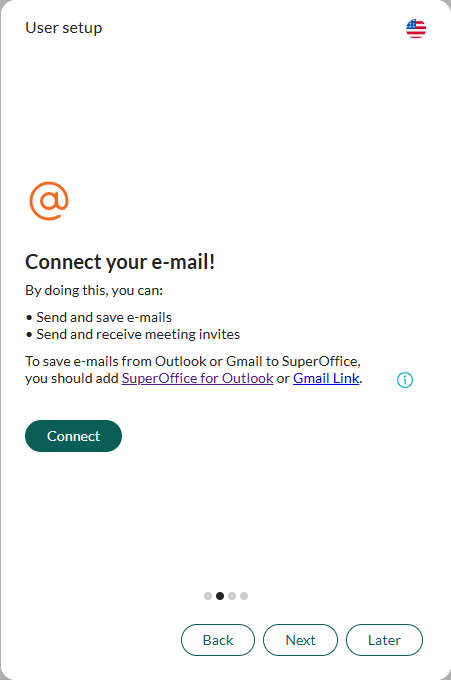
Connecting your email account enables you to send emails from SuperOffice and archive outgoing messages automatically. You can also send and accept meeting invitations.
Note
To work with incoming emails and access SuperOffice features from within your email client, install SuperOffice for Outlook (Microsoft 365) or SuperOffice Gmail Link (Google Workspace) after completing the wizard.
Step 3: Connect your document handler
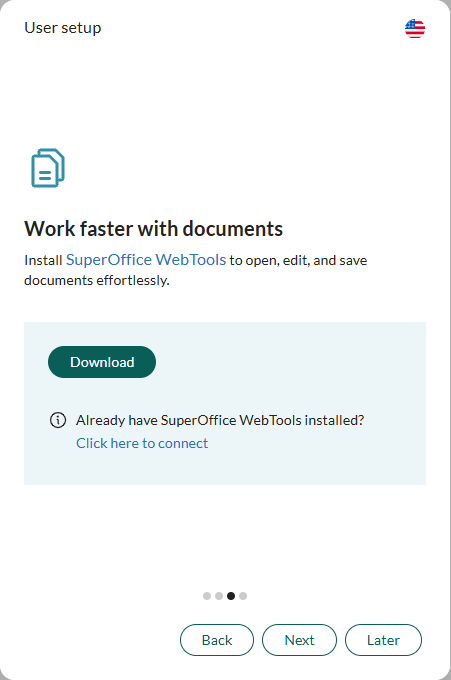
Your document handler controls how you create, open, and edit documents in SuperOffice.
Click Download WebTools, run the installer, and follow the on-screen instructions. WebTools connects your SuperOffice tenant to your local Office applications.
Note
The installer is selected automatically for your operating system. If you download WebTools directly from the SuperOffice download service, choose the correct installer for your OS (Windows or macOS) and version.
Other document handler options
WebTools with the SuperOffice document library is the default. Your administrator may have configured a different option:
| Option | Requires |
|---|---|
| SuperOffice document library (WebTools) | — |
| Microsoft 365 / SharePoint | Microsoft 365 subscription + admin setup |
| Google Workspace | Google Workspace subscription + admin setup |
Microsoft 365 / SharePoint: Stores documents in SharePoint Online. You can open them in SuperOffice CRM or in SharePoint and share them with people who do not use SuperOffice CRM via a SharePoint link.
Google Workspace: Stores documents in Google Workspace. You can open, edit, and store documents from any computer.
Synchronize your calendar
Synchronizing your calendar is not part of the wizard. If you want to keep appointments and follow-ups in sync between SuperOffice and your Outlook or Google calendar, set up Synchronizer for SuperOffice (available from the App Store).