Webhooks panel
The Webhooks panel is the central place for administrators and consultants to manage webhook subscriptions in SuperOffice. You can access it at Settings and maintenance > System design > Webhooks.
From this panel, you can view the health of every webhook at a glance, create new subscriptions, edit existing ones, and recover webhooks that have been automatically deactivated because of delivery failures.
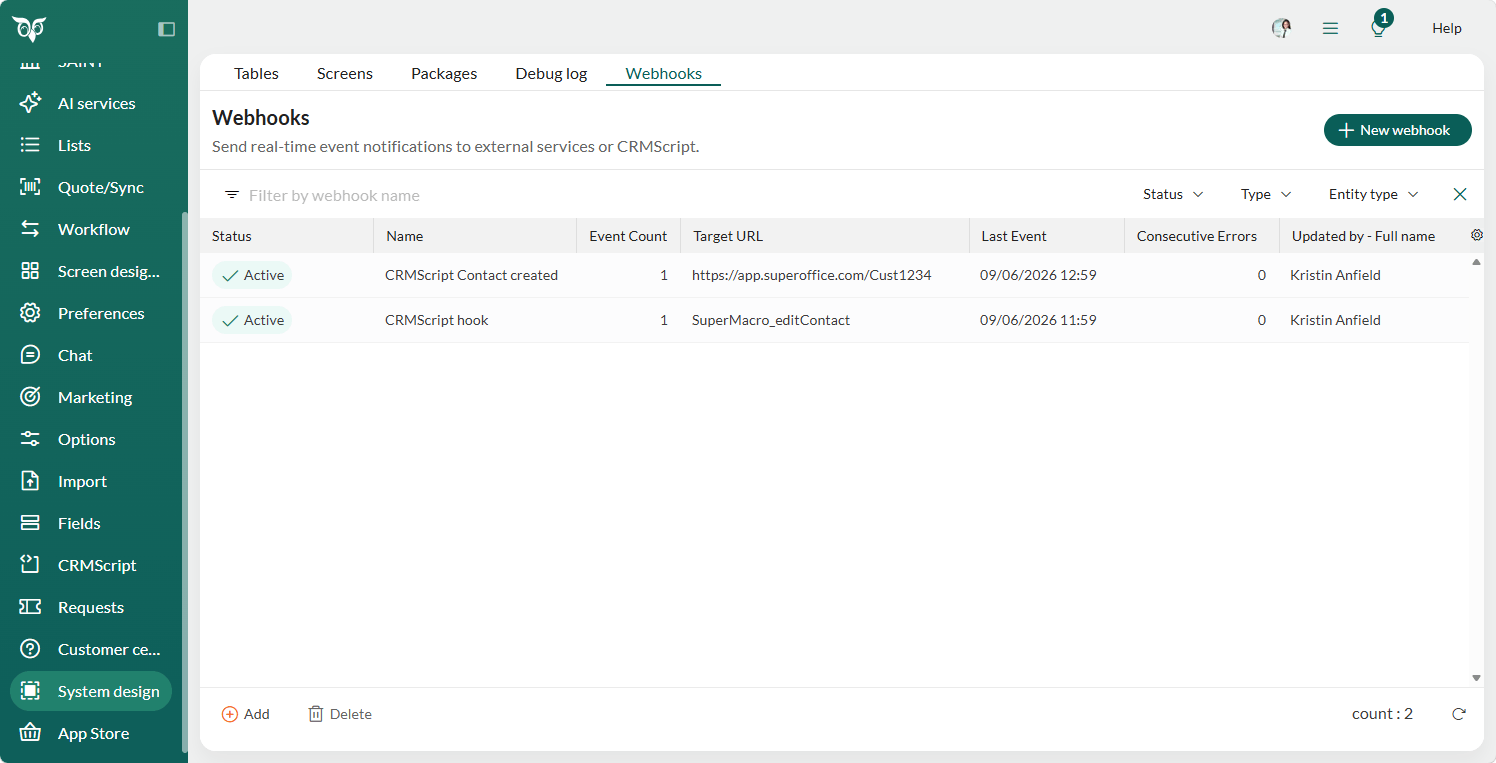
The webhooks list
The list shows all registered webhooks. You can sort and filter by any column.
| Column | Description |
|---|---|
| Status | Health badge showing the current state. |
| Name | The display name of the webhook. |
| Event Count | The number of event types the webhook subscribes to. |
| Target URL | The destination URL or CRMScript name. |
| Last Event | Timestamp of the most recent delivery attempt. |
| Consecutive Errors | Number of consecutive delivery failures. |
| Updated by | Full name of the person who last modified the webhook. |
Status badges
Each webhook has a status badge that shows its current health.
| Status | Color | Meaning |
|---|---|---|
| Active | Green | Running with no failures in the last 24 hours. |
| Active with failures | Yellow | Running but has had delivery failures in the last 24 hours. |
| Stopped | Grey | Manually stopped by an administrator. |
| Disabled | Red | Automatically deactivated by the system after 9 consecutive delivery failures. |
Context menu actions
Right-click a webhook row to access the following actions.
| Action | Description |
|---|---|
| Edit | Opens the webhook form with all current values pre-populated. |
| Copy | Creates a duplicate with "(copy)" appended to the name. The copy is created in the Stopped state. |
| Toggle active/stopped | Starts or stops delivery for the webhook. |
| Restart | Re-enables a deactivated webhook. Visible only when the webhook status is Disabled. |
| Delete | Permanently removes the webhook. A confirmation prompt appears before deletion. |
Delivery history
Select a webhook row to open the details panel. The Events tab shows a per-webhook delivery log.
| Column | Description |
|---|---|
| Timestamp | When the delivery was attempted. |
| Status | Outcome of the attempt. |
| Attempts | Number of delivery attempts made for this event. |
| Error code | The error returned if the delivery failed. |
You can retry individual failed events directly from this list, and export the full list to CSV.
Auto-deactivation and recovery
If a webhook receives 9 consecutive delivery failures, the system automatically deactivates it. The row shows a failure counter (for example, 7/9) and the last error in plain language.
To recover a deactivated webhook:
- Resolve the issue that caused the delivery failures.
- Right-click the webhook row and select Restart.
The webhook returns to Active status and resumes normal delivery.
Notifications in SuperOffice
Notification recipients see an alert in SuperOffice when a webhook is automatically deactivated. Select the alert to open the Webhooks panel.