Mobile CRM 11.1.5 update
New company - With company completion
Adding new companies can often be time-consuming and error-prone. Duplicate entries, misspellings, and incomplete details are common challenges when information is entered manually.
With the Company completion functionality, you get smart suggestions that help you avoid these issues. You'll see both existing companies already stored in SuperOffice and suggested company details from external sources. This allows you to quickly verify the information and add the correct company with just one click - a fast and efficient way to keep your data clean and accurate.
Scroll through the list to review the suggestions:
- Companies already in SuperOffice are shown with a company icon first in the list.
- New companies are shown without an icon last in the list, and you can expand the drop-down to view more details.
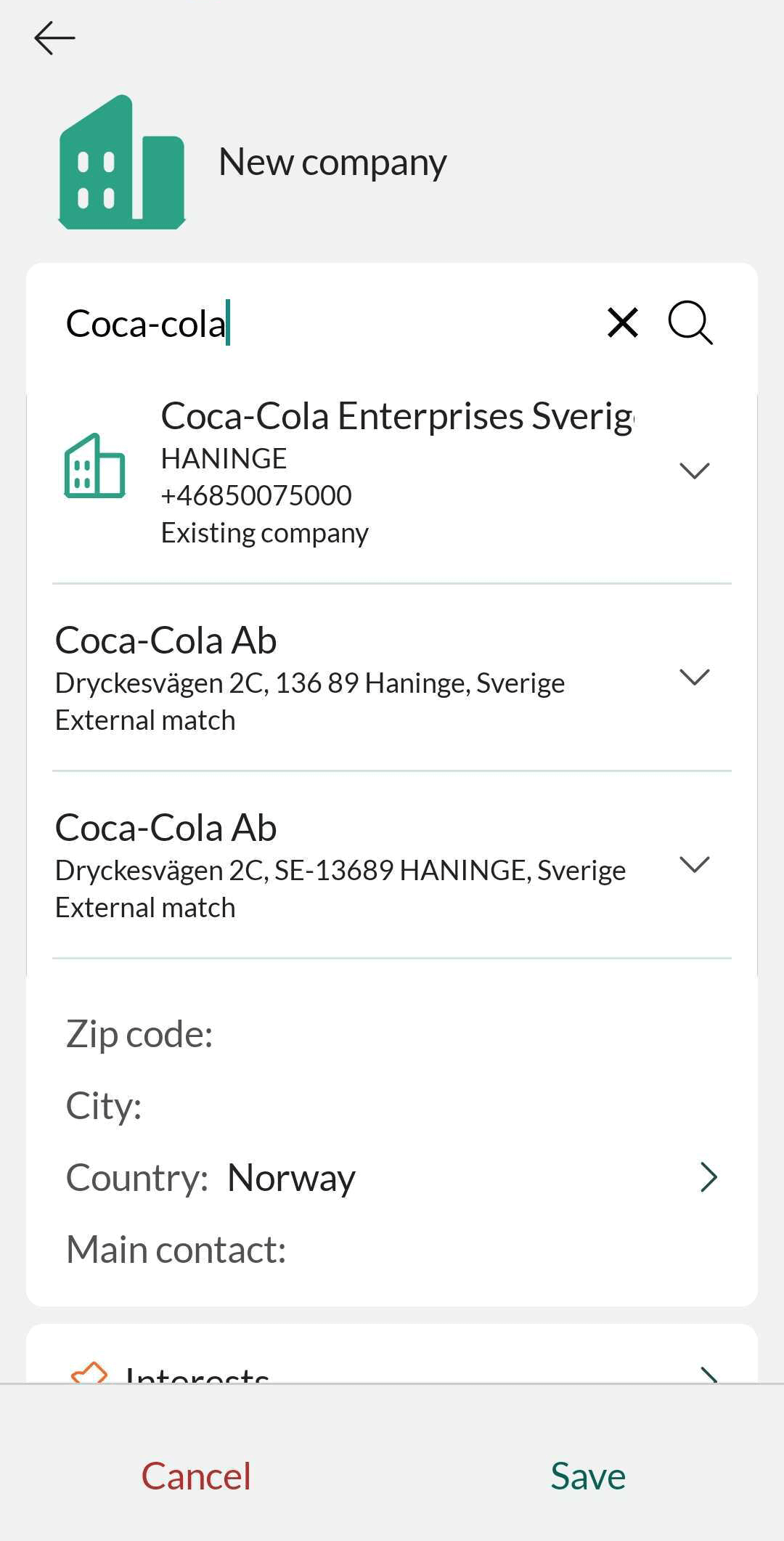
If none of the suggestions are relevant, you can select Skip and add the company details manually.
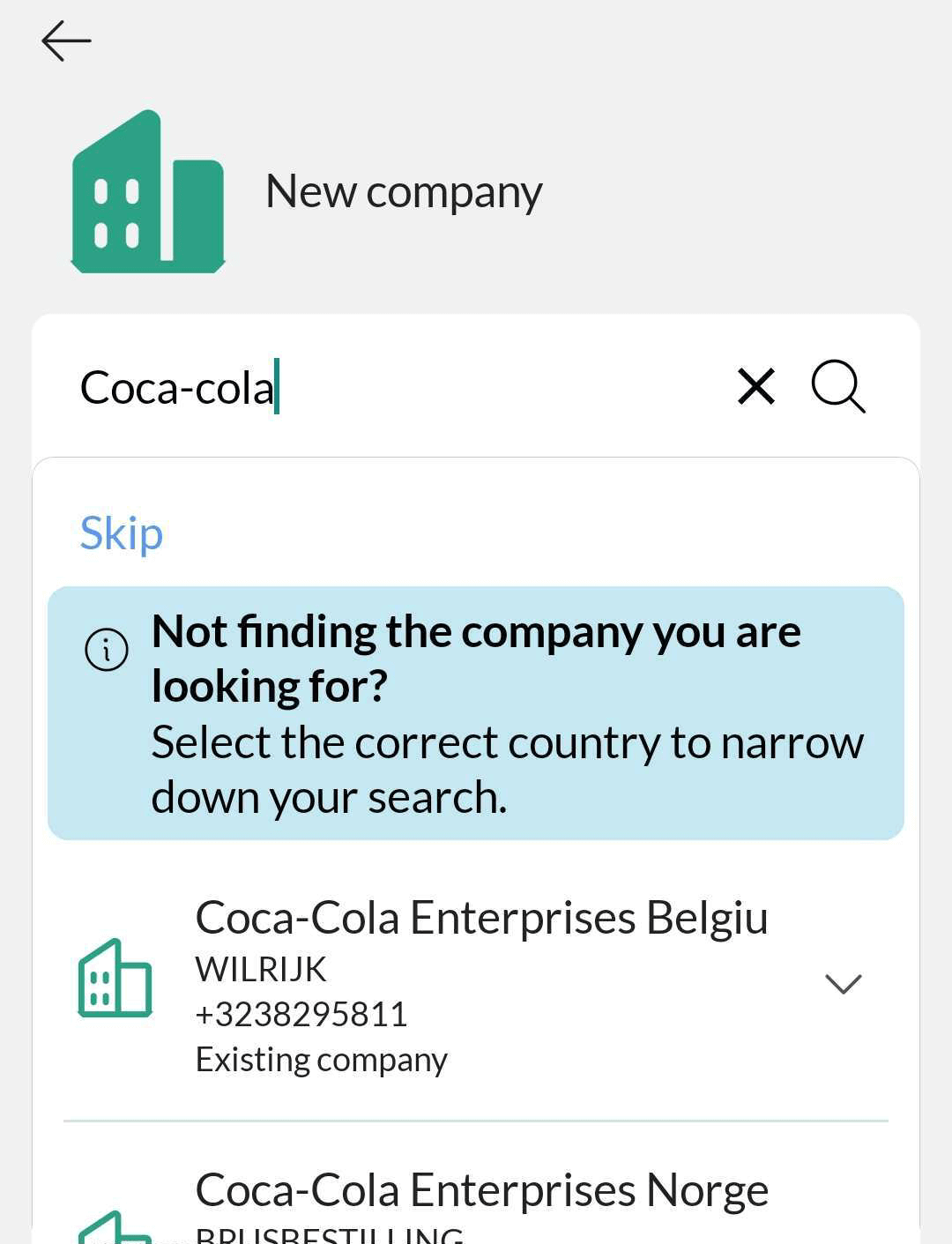
Tip
Change the country to get more accurate data, so the AI search engine knows where to start gathering information.
Company and Contact - Lead status
To support a structured lead qualification process, sales teams need to distinguish between new, in-progress, and disqualified leads.
When setting up your lead categories, each category includes a Lead status field. This lets you define exactly where a lead is in its journey and fine-tune how leads are managed and followed up throughout the sales process.

Follow-up - Complete follow-up by long press
Your Diary often contains follow-ups that need quick action - whether that's completing, deleting, or reviewing them.
To work more efficiently, simply long-press a follow-up to open a menu with key actions:
- View follow-up
- Complete (toggle)
- Delete follow-up
This makes it easy to manage your follow-ups directly from the Diary and stay on top of your daily tasks.
