Mobile CRM 11.1.12 update
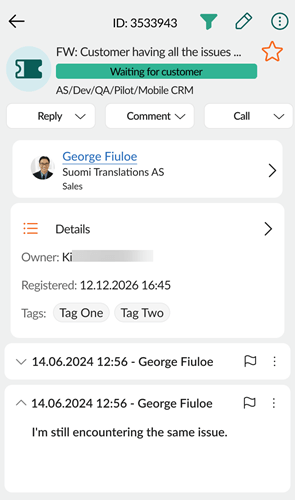
Requests - Reply to a single message
Stay in context by replying to any individual message in a request thread, including to external contacts not registered in SuperOffice CRM.
Long request threads can involve multiple contacts, and not every reply belongs to all of them.
Open a request in Mobile CRM and tap any message to reply directly to it. When you reply, you choose exactly which contacts receive your response, internal or external, so the right people stay in the loop, even when you're working on the go.
Move the + button (New button)
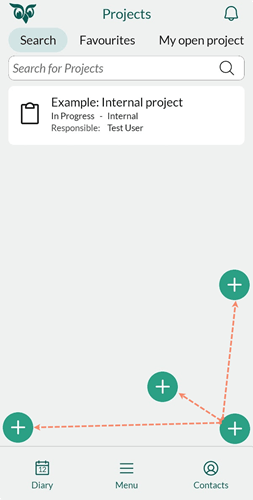
Keep important content visible by moving the + button away from wherever it overlaps your work. The + button sits in the lower-right corner by default, useful but easy to move if it overlaps content you need to see.
Look for the + button in the lower-right corner of most screens. Press and hold it, then drag it to a position that works better for you. For example, if you're often reading content in the lower-right corner, move the button to the left side instead.
Note
The position is saved per device. If you use both a mobile and a tablet, move the button on each device separately.
Biometric login for Mobile CRM
Log in to Mobile CRM with your fingerprint or face ID - no password needed. Passwords and two-factor authentication add friction to every login, especially on mobile.
The option appears automatically when you open Mobile CRM for the first time after updating. Tap Yes when prompted to enable fingerprint or face ID login.