SuperOffice for Outlook 6.3 update
Read more about SuperOffice for Outlook
SuperOffice for Outlook 6.3.5
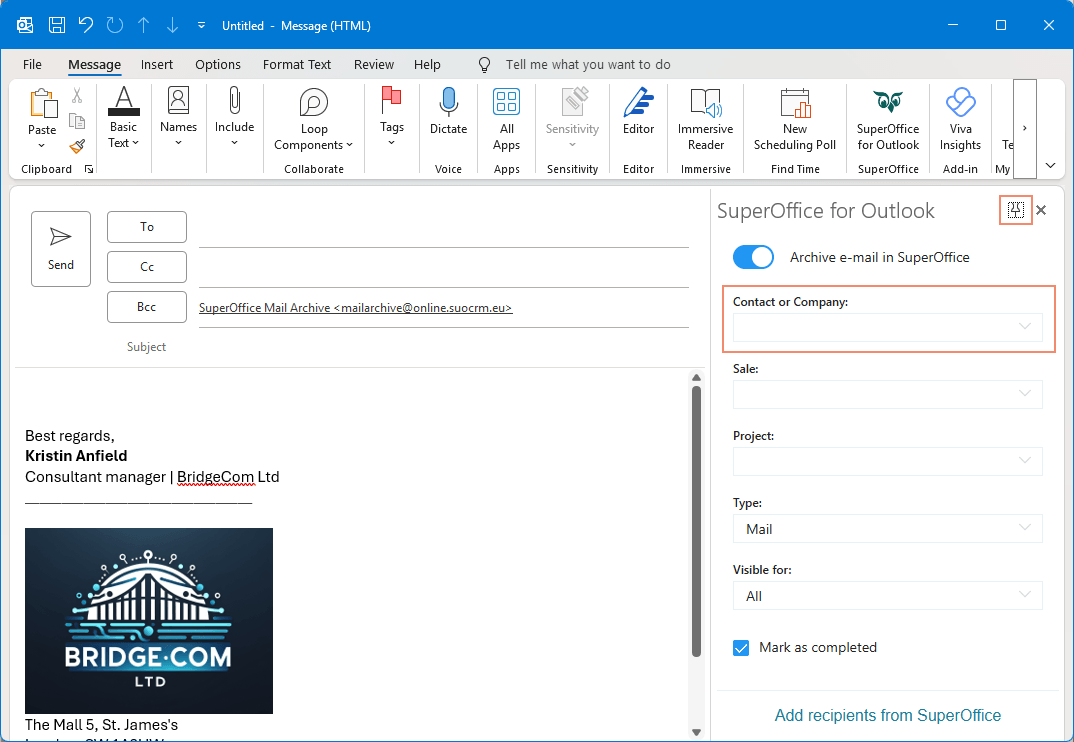
Grouped company and contact search field
Finding the right company or contact is quicker when you don't have to guess which field to search in. The Company and Contact fields are combined into a single, smart search field, so you can search by company or contact information and see relevant results in one list.
All input fields in SuperOffice for Outlook use the same search behavior as SuperOffice CRM, so search feels familiar wherever you are in the app.
When a matching company is found, related contacts are shown alongside it - handy when you remember the company but not the person you're after.
SuperOffice for Outlook 6.3.0
Use SuperOffice for Outlook in a shared mailbox
Teams that manage customer communication from a shared inbox can use SuperOffice side panel directly from that mailbox. A shared inbox often means CRM context gets lost. Shared mailbox support brings the SuperOffice side panel into the shared inbox, so customer information and archiving are available where the work happens.
Open the SuperOffice side panel from any shared mailbox in Outlook to access CRM data and archive emails as usual. Note that a Microsoft 365 administrator may need to grant consent before the feature is available to users. If consent is missing, users are guided through the approval workflow on first use.
New email - Pin the SuperOffice side panel
Keeping CRM context visible while composing an email is possible. The SuperOffice panel can be pinned when writing a new message. Without it, switching between composing and checking CRM information means losing focus mid-draft.
Pin the panel from the SuperOffice side panel header when a new email is open. With the panel in view and the Archive toggle enabled by default, it also serves as a natural reminder to save the email before sending.
Archive attachments - List does not contain images
Only relevant file attachments appear when archiving documents from an email, as signature images are filtered out automatically. This makes it faster to find and select the files that actually matter.
Open an email, click to archive documents, and the list shows only real attachments.
See more details for the release for SuperOffice for Outlook in Community.
Note
Some of these features may require approval from your IT administrator in your Microsoft Admin portal. Once approved, it can take up to 72 hours before the feature becomes available in Outlook. During this time, some users may see it earlier than others. If you don't see the feature after 72 hours, please contact your IT administrator.