Core CRM and Sales 12.2 update
Dashboard - Measure sale cycles
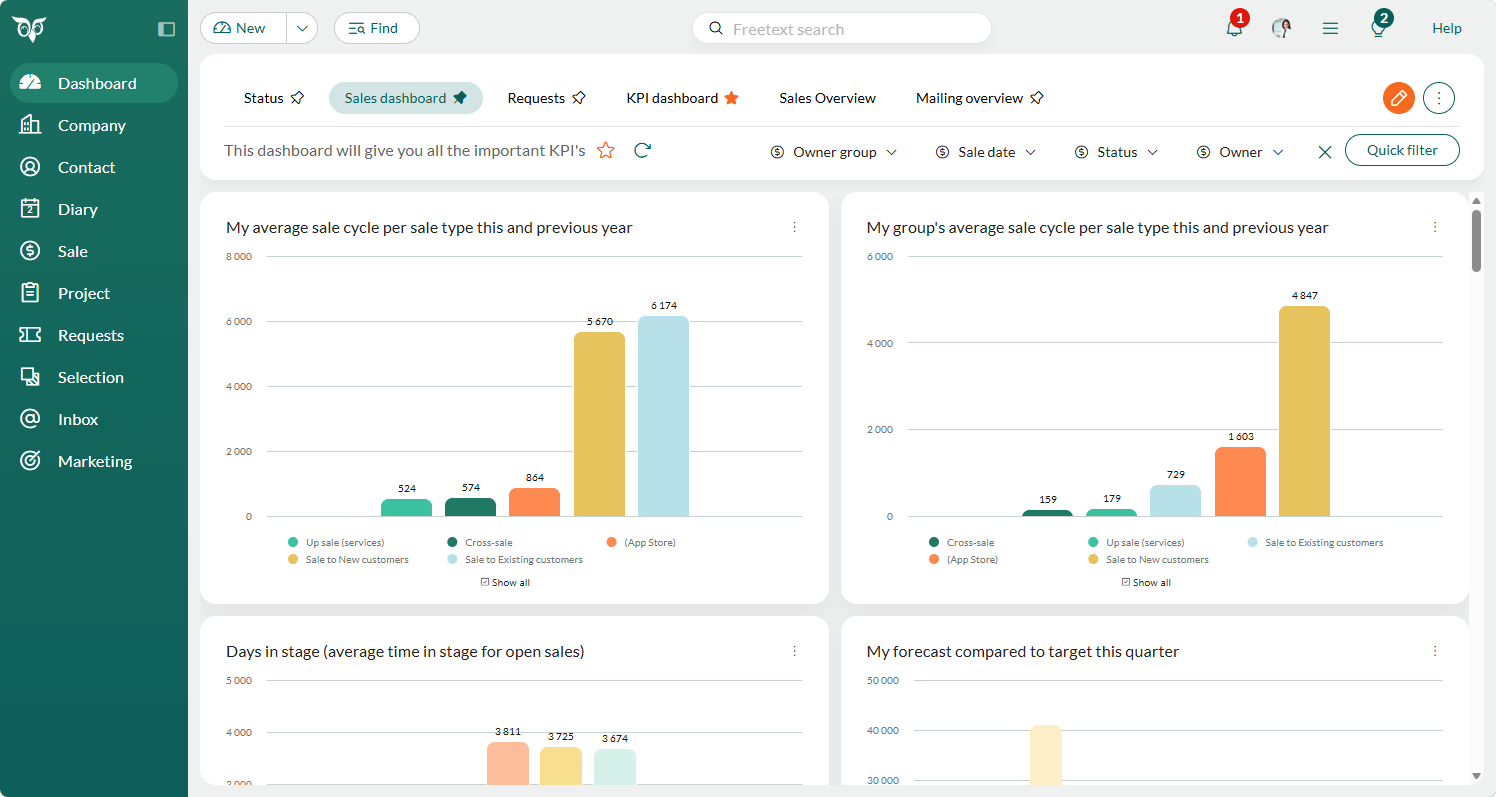
Understanding how long deals take to close helps you spot what's working and where deals stall. The Sale cycle field shows the number of days from when a sale is created until it's set to Sold or Lost — the count appears once the sale reaches one of these statuses, rather than running while it's still open. For open sales, use the Days in stage field instead.
Without this, tracking cycle length across reps, teams, and segments means piecing information together by hand. The Sale cycle field puts this on the dashboard, so the pattern is visible at a glance rather than something you have to dig for.
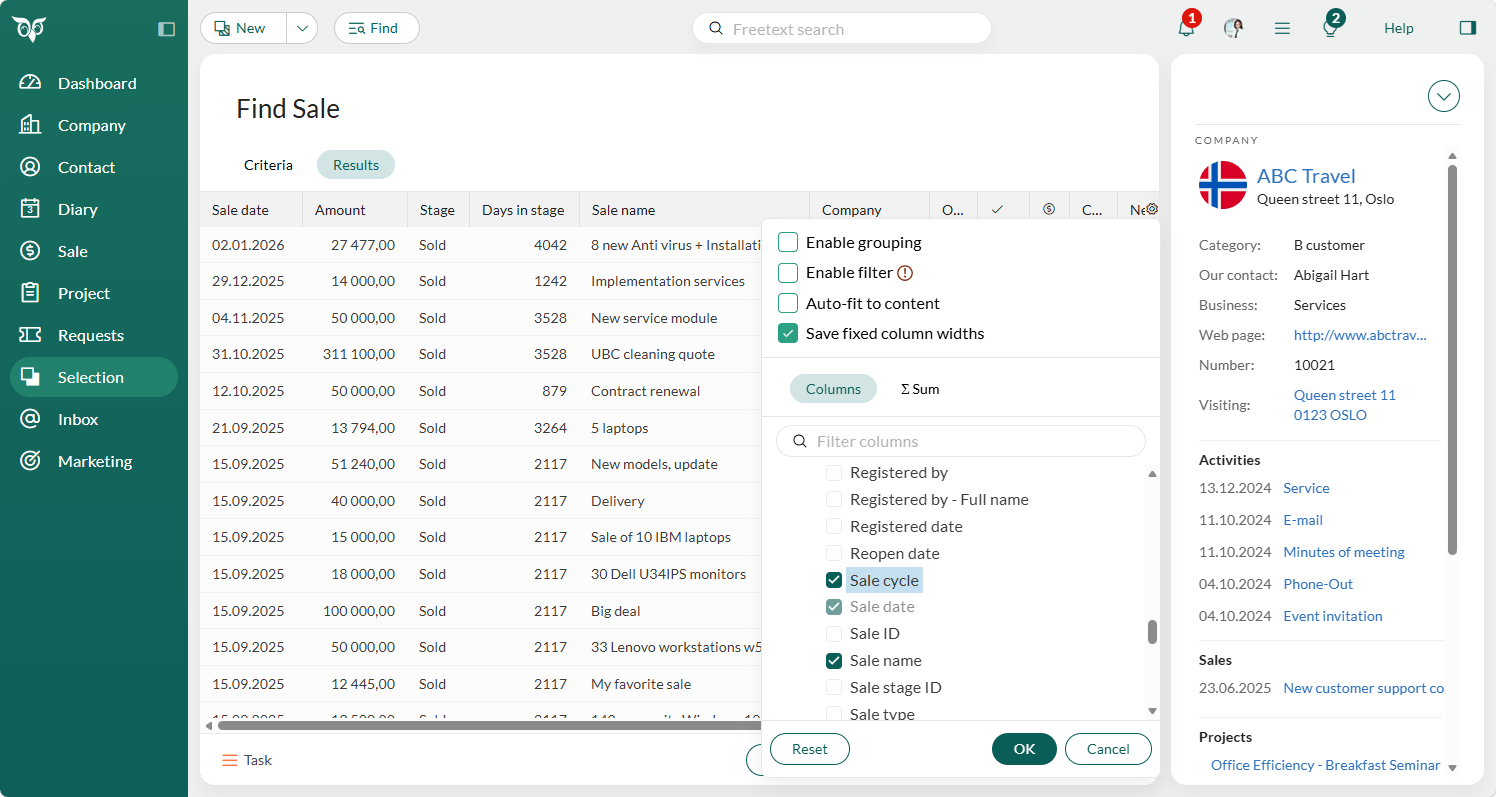
You'll find it in the Dashboard module, as a filter in Find, and as a column in archives.
Two ready-made tile templates in the Library make it easy to get started:
- My average sale cycle per sale type this and previous year
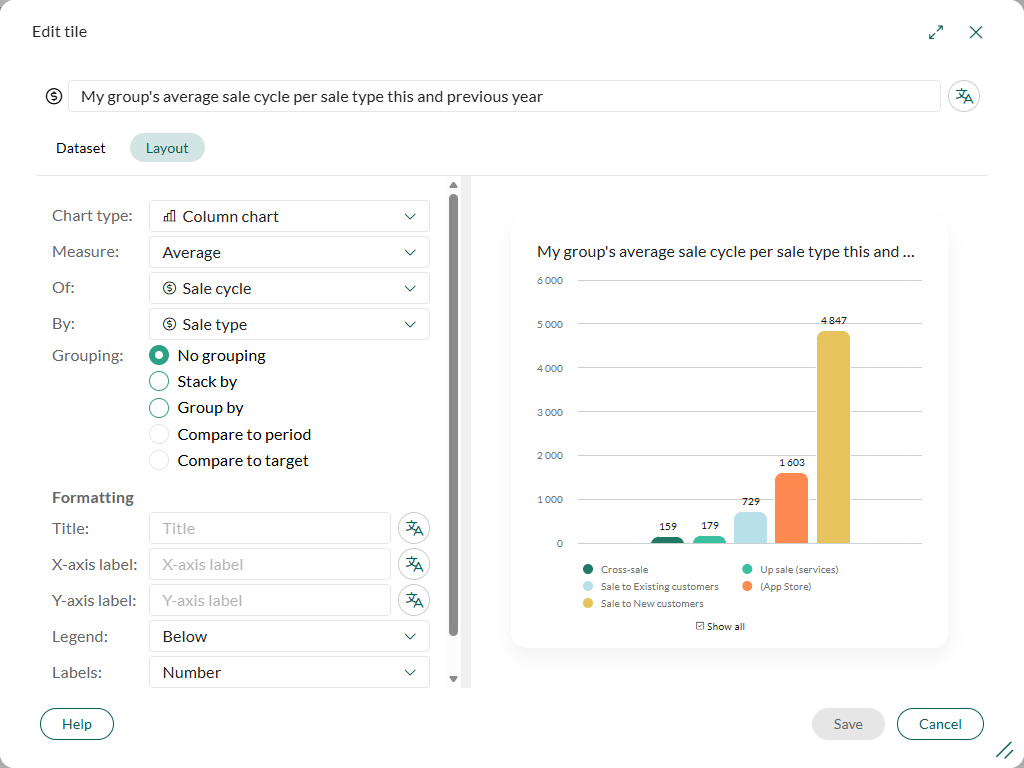
- My group's average sale cycle per sale type this and previous year
For example, a sales manager could add the group tile to compare how cycle length trends across teams and use that to sharpen forecasting.
Find - Sale cycle as criteria and column
The Sale cycle criteria and column let you see how long a sale has been open. Because the field shows a number of days, you can search between, above, or below any figure you choose.
Adding Sale cycle as a column in your sale selections gives you a quick view of how long each sale has been in progress, right alongside the rest of your results.
Note
The Sale cycle shows 0 days until the sale is set to Sold or Lost. For open sales, use the Days in stage field instead.
Email and Document - Download the email or document file
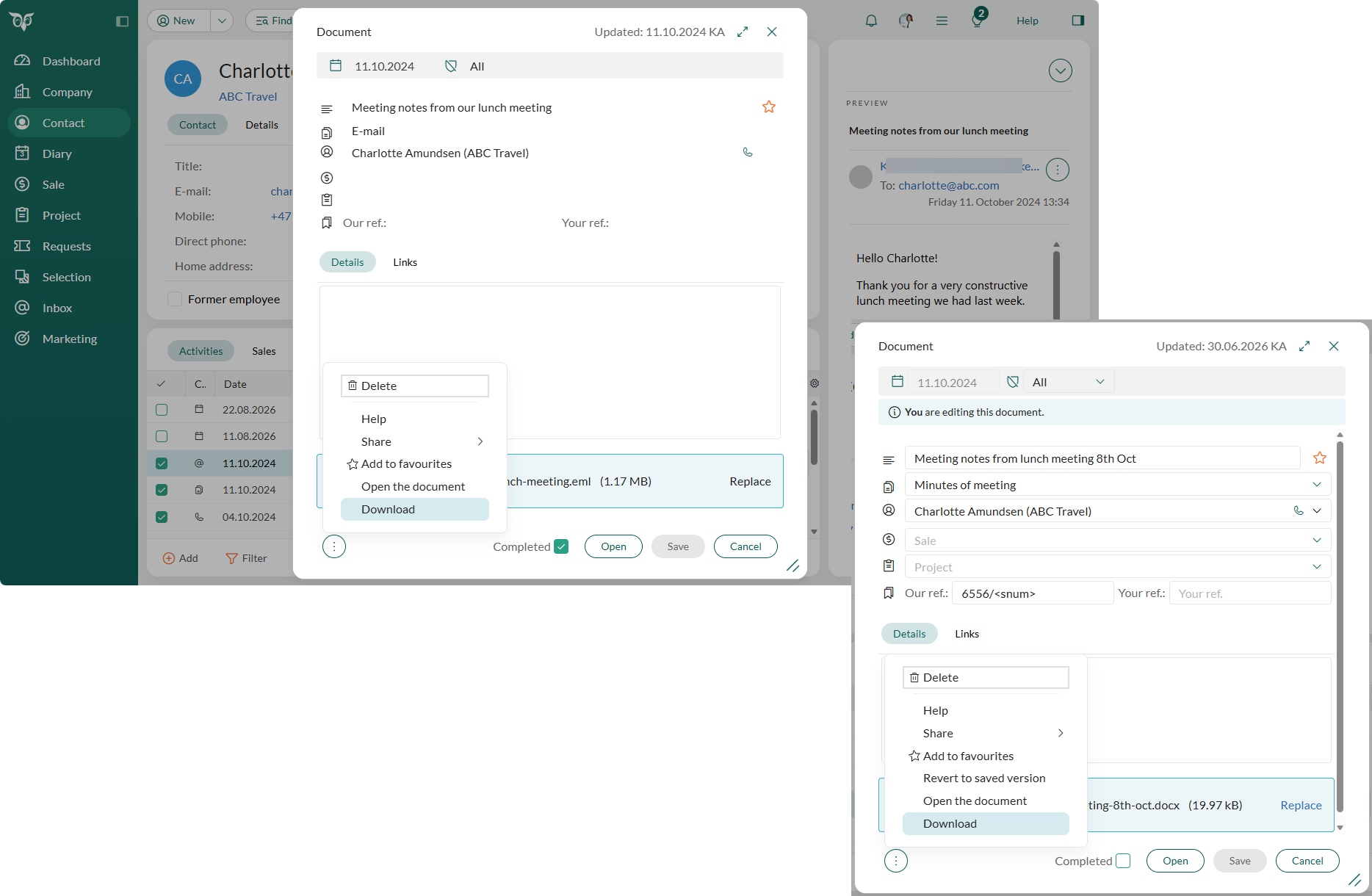
Sometimes you need a copy of an email or document outside SuperOffice — to forward it another way, archive it locally, or open it in a different tool. You can now download the email or document file from any archive where you see it, and from the document dialog.
Downloading an email lets you open the stored message in your local email client. As Outlook Mail Link (OML) is phased out, this gives you a straightforward way to keep working with emails in your local Outlook installation.
In any archive that shows documents and emails, the context menu includes a Download option. Multi-select isn't supported.
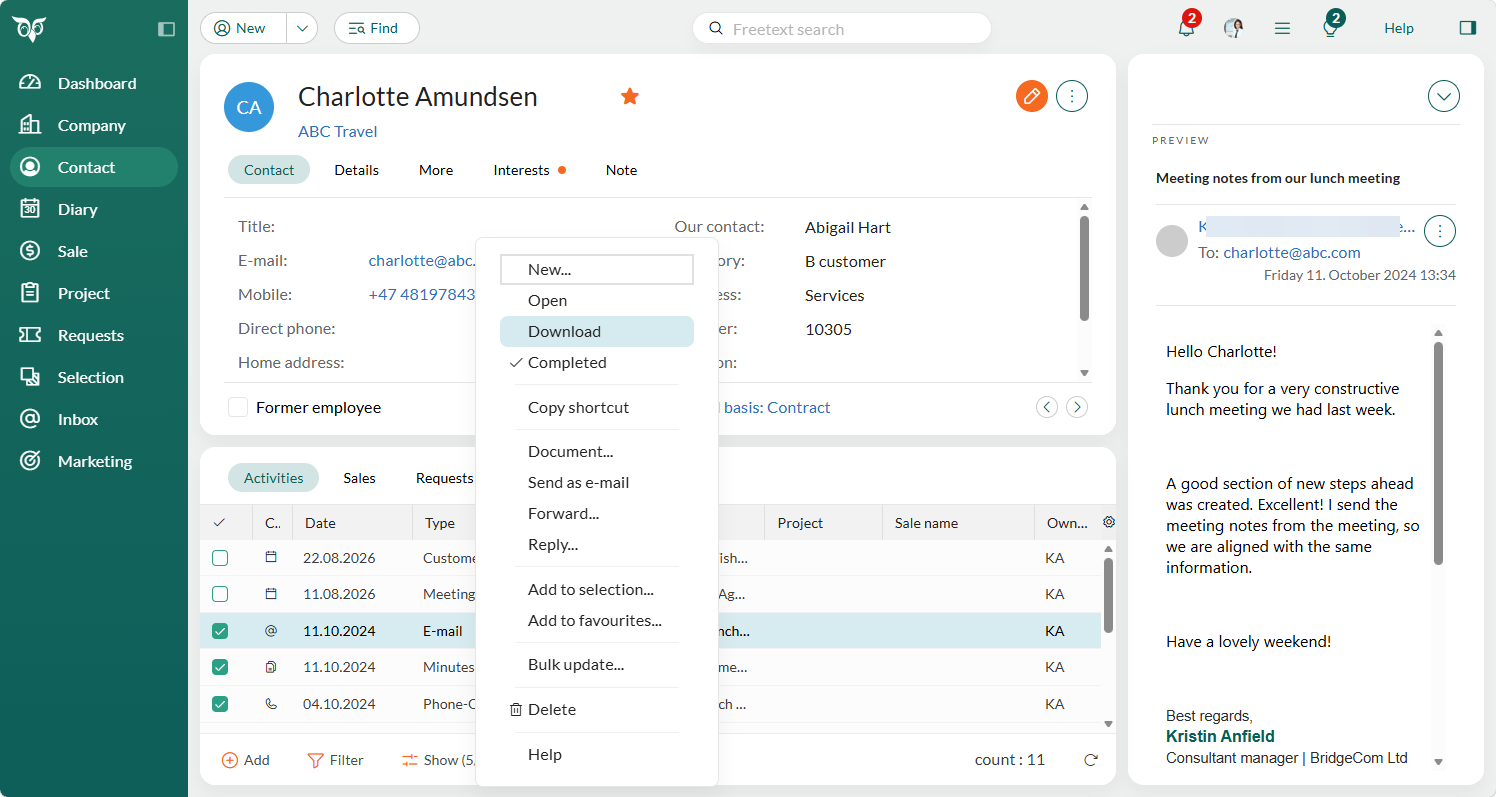
Opening an email inside SuperOffice shows the Download option in the Task menu.
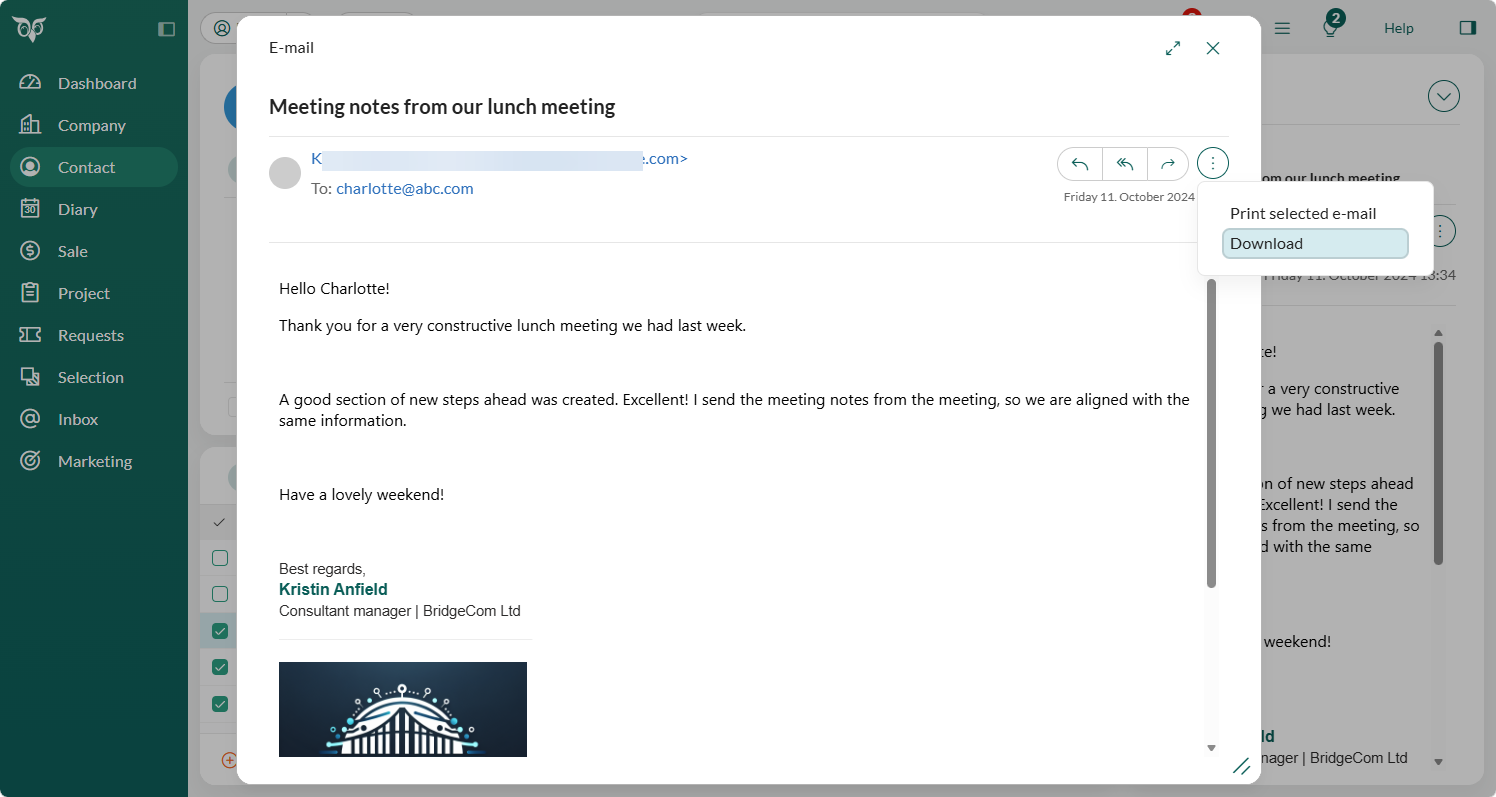
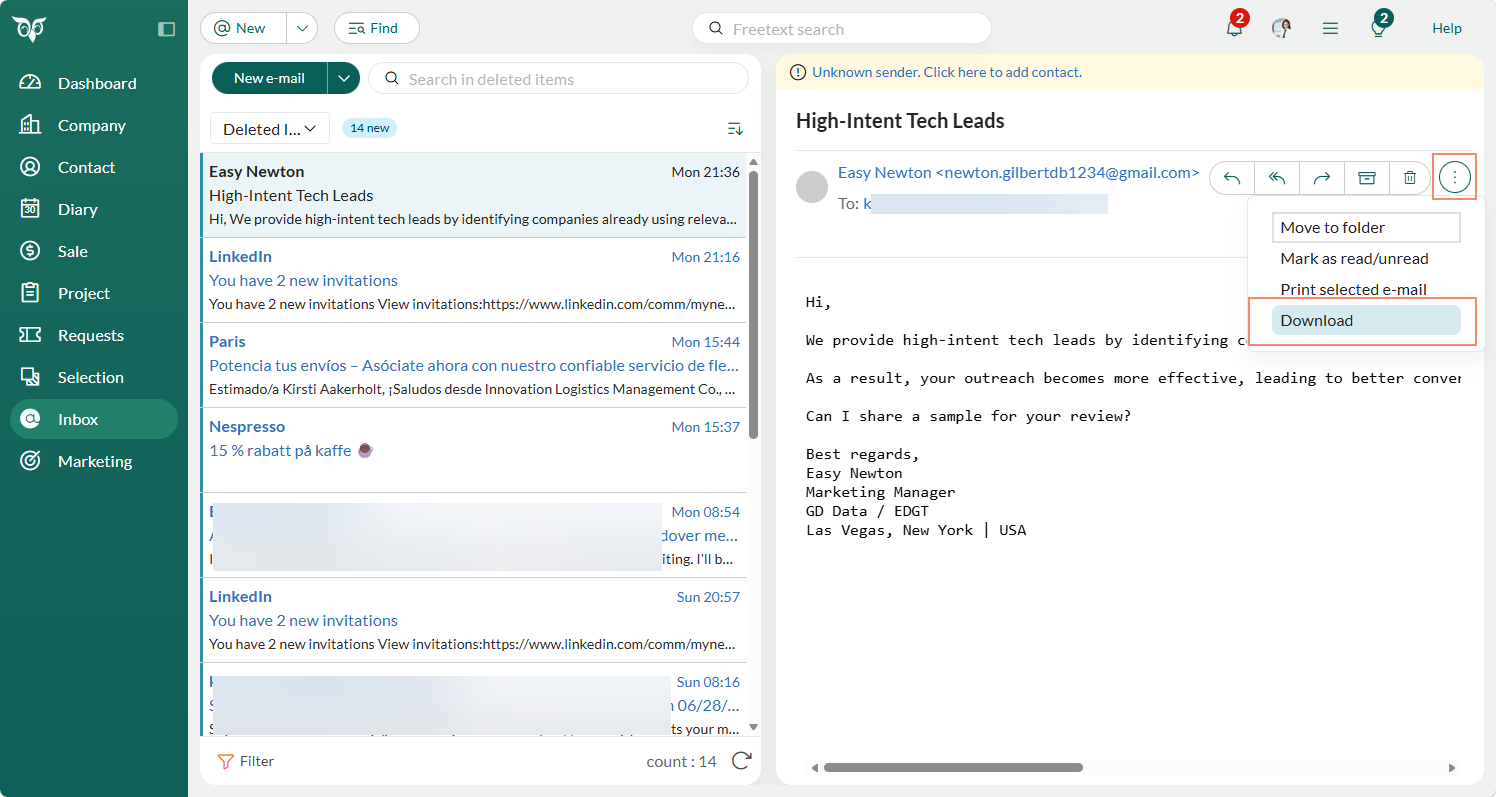
An email in the Inbox also has the Download option in the Task menu.