Settings and maintenance 12.1 update
System design - Webhooks management panel
The Webhooks panel gives administrators a visual way to manage, monitor, and recover webhooks without writing code or using the API.
Go to Settings and maintenance > System design > Webhooks to see all configured webhooks in a sortable, filterable overview. Each row shows the webhook name, health status, target, subscribed events, last delivery time, last event, and consecutive errors for the last 24 hours.
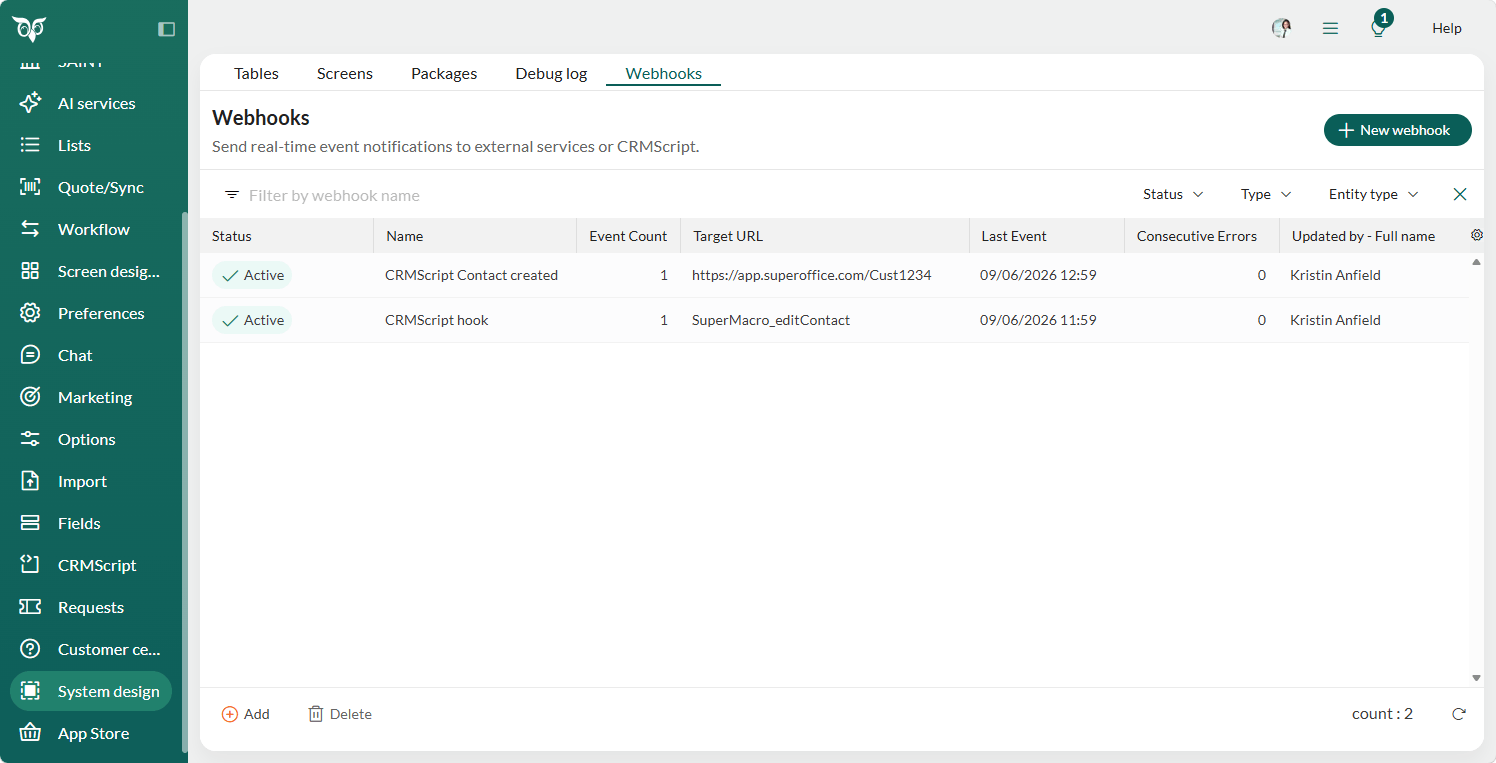
Health status is color-coded: green for healthy, amber for active with failures, grey for manually stopped, and red for automatically deactivated.
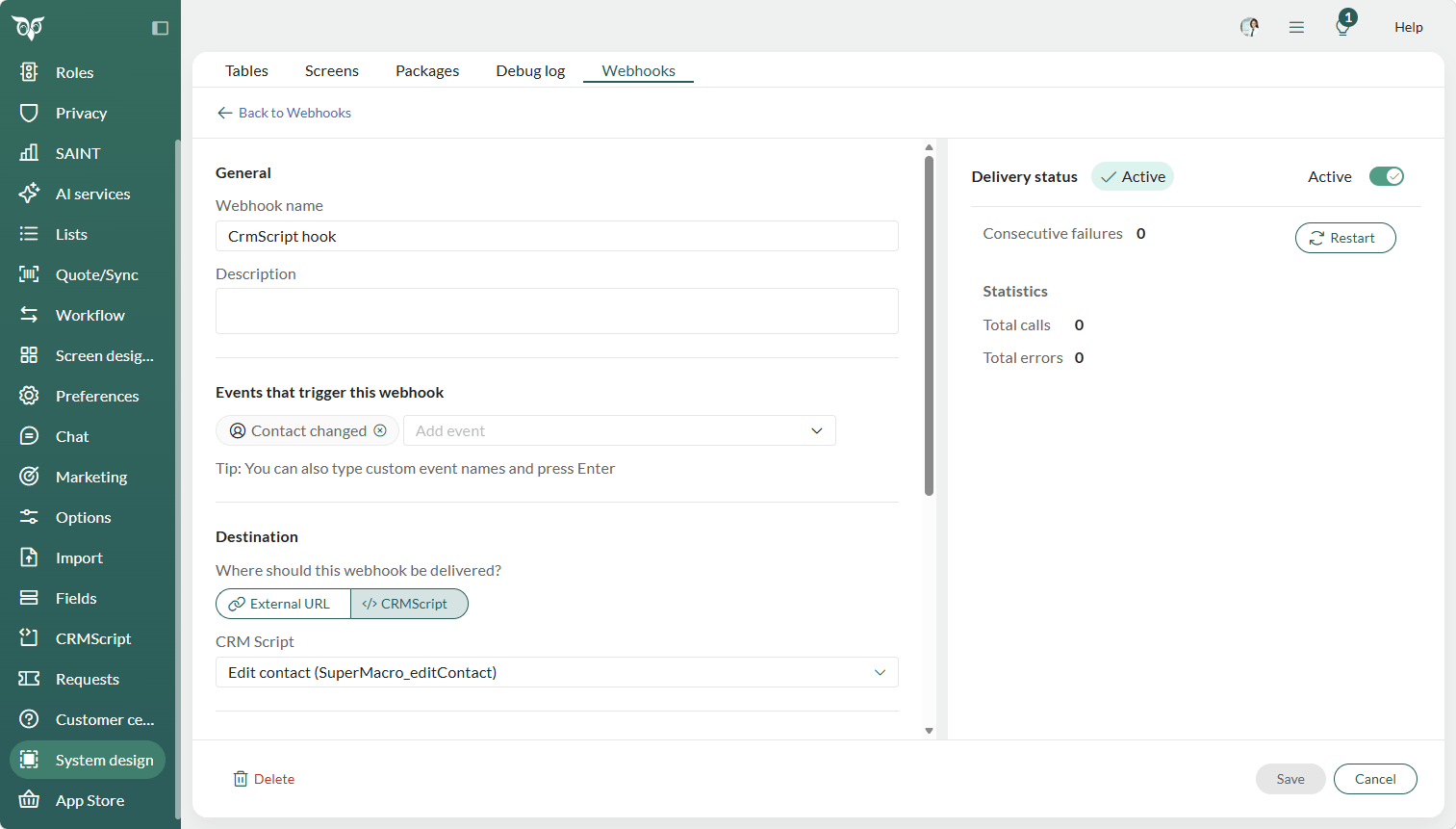
To create and edit webhooks you get a guided form. Select the events to subscribe to by entity type, set the destination as an external HTTPS URL or a CRMScript, and test the connection inline before saving. A primary error notification email address is required - the form cannot be submitted without one. Additional CRM users (in your company) and external email addresses can be added as recipients, and you can choose whether to be notified by email, in-app, or both.
The context menu gives you options to edit, copy, toggle the active/stopped state, restart, or delete a webhook. Copying a webhook creates a duplicate with a "(copy)" suffix in stopped state.
Note
After 9 consecutive delivery failures, the system automatically deactivates the webhook. A red banner on the webhook shows the failure count and last error in plain language. Use the Restart button to re-enable it.
When a webhook is automatically deactivated, all users configured to receive notifications for that webhook get an in-app banner notification with a direct link to the delivery log for that webhook.
The Events tab shows the full delivery history — timestamp, status, attempt count, and error code. Failed events can be retried individually. The list can be exported to CSV.
Read more about managing webhooks.