WebTools deployment in a restricted environment
Currently, the best way of distributing WebTools is by deploying the pre-requisites and allowing users to install WebTools themselves. This method will utilize the built-in update functionality.
However, there are companies where users are not allowed to install software on their devices at all. Those companies need to deploy the pre-requisites and the MSI files using their preferred deployment strategy. Updates must be manually handled by the company and deployed through their solution.
If WebTools are already installed, or if you for other reasons wish to configure it, it is possible to use SoConfig files for the initial setup:
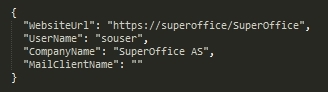
When deploying through GPO or other alternatives, executing the SoConfig file during the log-on process will set up WebTools for the user. The site will not be added again if it has already been added.
Note
If you are not the administrator, you get WebTools installed in c:\users\<yourname>\appdata\local\SuperOffice. To install on C:\Program files, you need to be the local administrator.
Overview
- Extract required files from the WebTools installer.
- Distribute the MSI files (using GPO or SCCM tools) to all machines that are going to use WebTools.
- Auto-configure the URL and settings using a script.
The following MSI files must be deployed to every SuperOffice user (AD group all SuperOffice users):
| MSI file | WebTools 13.1.80 and older | WebTools 13.2.3 and newer |
|---|---|---|
| SuperOffice.Web.Extensions.msi (document plugin) | Yes | Yes |
| SuperOffice.MailLink.Setup.msi (Outlook add-in) | Yes | No |
| SoCrossTableInstaller.msi (cross-table reports) | Yes | No |
Pre-requisites
- Username in SuperOffice must be the same as in ActiveDirectory (sAMAccountName).
- SuperOffice needs to be configured to use Active Directory as the authentication method for all users.
- SuperOffice Web needs to be configured to use Windows Authentication on the website.
- We also recommend to disable the WebTools upgrade dialog.
- Blocking applications must be closed.
- Libraries must be installed before any SuperOffice plugins are installed.
Steps
Select your WebTools version to see the deployment steps:
Warning
Do not run Outlook.exe as administrator (then you do not run it as "your own local user") and that will not work for MailLink.
Before you begin, close the following applications:
| Application | Required for |
|---|---|
| SuperOffice TrayApp Client | Web Extensions |
| Outlook | MailLink |
| SuperOffice CRM Win client | MailLink |
| SoEventServer | MailLink |
Step 1: Extract required files
You need SoCrossTableInstaller.msi, SuperOffice.MailLink.Setup.msi, and SuperOffice.Web.Extensions.msi.
Download the WebTools installer from the Download Service or from inside the SuperOffice CRM Download menu.
Tip
Because MailLink is a separate downloadable installer available on the Download Service, customers wishing to upgrade or extract MSI only MailLink can do so.
Extract the installers out of the WebTools installer:
SuperOffice.Web.Tools.exe /k /d C:\TempRun
SuperOffice.MailLink.Setup.exebut do not finish the installation. While keeping the installer on-screen:- Go to the %temp% folder.
- Locate a folder where the installer unpacked the MailLink files.
- Copy the SuperOffice.MailLink.Setup.msi file out of it.
Run
SuperOffice.Web.Extensions.exeas above to obtain SuperOffice.Web.Extensions.msi.To get SoCrossTableInstaller.msi, download CrossTable viewer from inside the SuperOffice Web Download menu and follow the same procedure to extract the MSI from the %temp% folder.
Steps 2-3: Deploy and configure MSI files
- Copy the below code-lines to Notepad or another text editor and save as InstallWebTools.cmd:
@echo off
msiexec /i SoCrossTableInstaller.msi /qn /norestart
msiexec /i SuperOffice.MailLink.Setup.msi /qn /norestart
msiexec /i SuperOffice.Web.Extensions.msi /qn /norestart
xcopy SuperOfficeWebToolConfiguration.cmd "%ALLUSERSPROFILE%\Microsoft\Windows\Start Menu\Programs\Startup" /Y
del "%ALLUSERSPROFILE%\Microsoft\Windows\Start Menu\Programs\Startup\SuperOffice CRM.Web Extensions.lnk"
- Copy the below code-lines to Notepad or another text editor and save as SuperOfficeWebToolConfiguration.cmd:
@echo off

set SuperOfficeWebUrl=https://socrm.myorganization.com/sales
set SuperOfficeServiceURL=https://socrm.myorganization.com/service
set SuperOfficeOwnerContactName=Licence owner name

IF NOT EXIST "%appdata%\soconfig\" (
GOTO CREATEDIR
)

IF EXIST "%appdata%\soconfig\" (
GOTO SOCONFIG
)

:CREATEDIR
mkdir "%appdata%\soconfig"
GOTO SOCONFIG

:SOCONFIG
IF NOT EXIST "%appdata%\soconfig\config.SoConfig" (
@echo {>> "%appdata%\soconfig\config.SoConfig"
@echo "WebsiteUrl": "%SuperOfficeWebUrl%",>> "%appdata%\soconfig\config.SoConfig"
@echo "UserName": "%USERNAME%",>> "%appdata%\soconfig\config.SoConfig"
@echo "CompanyName": "%SuperOfficeOwnerContactName%",>> "%appdata%\soconfig\config.SoConfig"
@echo "MailClientName": "outlook">> "%appdata%\soconfig\config.SoConfig"
@echo }>> "%appdata%\soconfig\config.SoConfig"
GOTO RUNSOCONFIG
) else (
GOTO STARTWEBTOOL
)

:STARTWEBTOOL
IF "%PROCESSOR_ARCHITECTURE%"=="x86" (
start "" "%Programfiles%\SuperOffice\SuperOffice Web Extensions\SuperOffice.TrayApp.Client.exe"
) else (
start "" "%Programfiles(x86)%\SuperOffice\SuperOffice Web Extensions\SuperOffice.TrayApp.Client.exe"
)
GOTO END

:RUNSOCONFIG
IF "%PROCESSOR_ARCHITECTURE%"=="x86" (
"%Programfiles%\SuperOffice\SuperOffice Mail Link\SuperOffice.MailLink.ClientConfiguration.exe" -set PreferredClient SM_Web
"%Programfiles%\SuperOffice\SuperOffice Mail Link\SuperOffice.MailLink.ClientConfiguration.exe" -set SmUrl %SuperOfficeWebUrl%/services/MailLinkService.svc
"%Programfiles%\SuperOffice\SuperOffice Mail Link\SuperOffice.MailLink.ClientConfiguration.exe" -set CsUrl %SuperOfficeServiceURL%/scripts/soapTicket.exe
"%Programfiles%\SuperOffice\SuperOffice Mail Link\SuperOffice.MailLink.ClientConfiguration.exe" -register-user
"%appdata%\soconfig\config.SoConfig"
GOTO END
) else (
"%Programfiles(x86)%\SuperOffice\SuperOffice Mail Link\SuperOffice.MailLink.ClientConfiguration.exe" -set PreferredClient SM_Web
"%Programfiles(x86)%\SuperOffice\SuperOffice Mail Link\SuperOffice.MailLink.ClientConfiguration.exe" -set SmUrl %SuperOfficeWebUrl%/services/MailLinkService.svc
"%Programfiles(x86)%\SuperOffice\SuperOffice Mail Link\SuperOffice.MailLink.ClientConfiguration.exe" -set CsUrl %SuperOfficeServiceURL%/scripts/soapTicket.exe
"%Programfiles(x86)%\SuperOffice\SuperOffice Mail Link\SuperOffice.MailLink.ClientConfiguration.exe" -register-user
"%appdata%\soconfig\config.SoConfig"
GOTO END
)
:END
exit
Install all MSI packages using the InstallWebTools.cmd script. It also copies the SuperOfficeWebToolConfiguration.cmd script to the Start menu for all users and removes the default Web Extensions link.
Edit SuperOfficeWebToolConfiguration.cmd with correct settings:
set SuperOfficeWebUrl=https://socrm.myorganization.com/sales
set SuperOfficeServiceURL=https://socrm.myorganization.com/service
set SuperOfficeOwnerContactName=Licence owner name
Restart the target computer.