Archiving emails on companies/contacts
It is possible to archive an email (including any attachments) in your mail client inbox on a company/contact in SuperOffice CRM. This is a convenient way of storing information you receive via email together with other company/contact information in SuperOffice CRM.
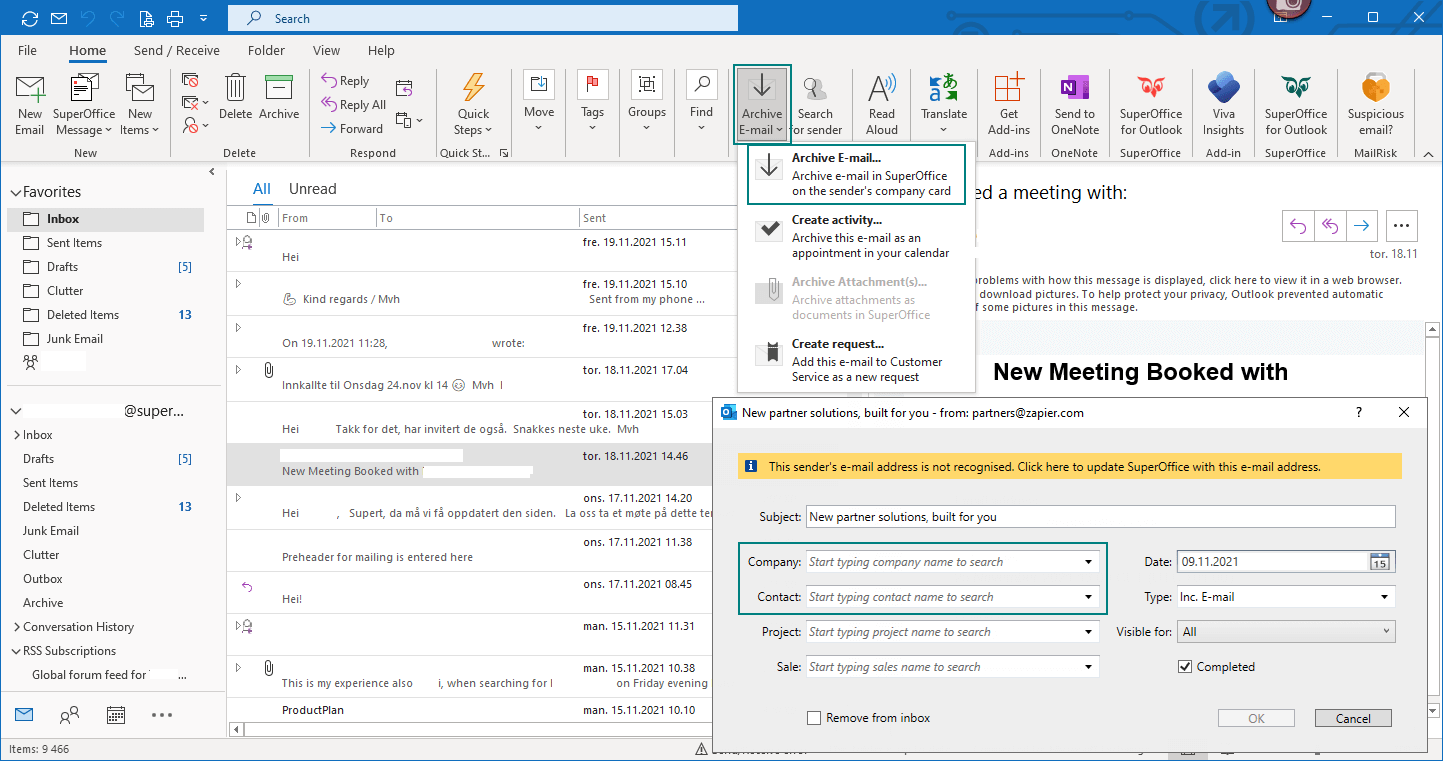
Steps
Select the email(s) you would like to archive.
Click the Archive email button on the toolbar, and Archive email from the dropdown. If you select more than one email, the procedure below is repeated for each email.
If the sender of the email is not listed in SuperOffice, a warning will appear at the top of the dialog for archiving email: "This sender's email address is not recognized. Click here to update SuperOffice with this email address".
In the Subject field, the email subject is automatically inserted. Edit it to change how it appears in the Activities section tab.
In the Company field (mandatory), start typing to search for a company and select from the matches.
In the Contact field, select a contact from the company, or start typing to search.
Optionally, select a Project and/or Sale to link the email to.
In the Type dropdown, select a document type.
In the Visible for field, click the arrow next to the field. A list is displayed allowing you to choose if the document should be visible to all users, private (visible only to the user defined as owner) or visible to all users in the user group that the owner belongs to.
Note
The Visible for field is only available if this right is assigned to you in Settings and maintenance.
Check the Remove from inbox box to remove the email from the inbox and move it to the Deleted items folder after it is successfully archived.
Check the Include attachments box to archive the email including attachments. Uncheck to save without attachments.
Click OK. The selected email(s) and any attachments are archived to SuperOffice CRM as new documents. You can then double-click any of these documents in the Activities section tab to open the email in your mail client.