CrmSetup and CrmTask utilities
SuperOffice 11.6 Onsite has two tools to replace ServerSetup and DBSetup.
CrmSetup is for installation and maintenance of database and document templates. It covers tasks like installation, upgrade, inspection, import, export, and transfer of the database. Document templates are installed when creating new and upgrading current installation.
CrmTask is for scheduling regeneration of freetext index, Saint counters and Status monitors, and running ERP sync.
CrmSetup and CrmTask are commandline tools - argument files can be made and reused to make the work easier, just copy them into the CrmSetup folder. You can download example argument files. The first commented-out line in the example file has the full command for copy-paste into cmd. Remember to change all necessary values.
Online argument generators
The HTML-based argument generators are also available online – no download required:
Open the link, fill in your values, and copy the generated argument file content directly - or generate argument files for the command line tool.
You can also use local HTML-based argument generators. The zip file contains two HTML files, one for each utility. Just unzip them and run locally.
CrmSetup
Run the command prompt as administrator, --help gives possible options and arguments for the different options:
...>crmsetup --help
...>crmsetup new-installation --help

D:\SO Onsite 11.6\CrmSetup>CrmSetup.exe --help
Usage: CrmSetup [command]

CrmSetup is a command-line utility designed to manage SuperOffice CRM installations. It is a replacement
for the traditional SuperOffice CRM Setup tool and it provides commands for creating new installations,
upgrading existing setups, and inspecting databases.

Commands:
  new-installation      Create a new installation
  upgrade-existing      Upgrade existing installation
  inspect-database      Inspect existing database
  kill-database         Kill existing superoffice database
  import-file           Import an IMP data file to the database.
  export-database       Export a database to a file
  import-database       Import a database from a file, overwriting any existing database
  transfer-database     Transfer data from a source to a destination database

Options:
  --arg-file            Use arguments from argument file
  -h, --help            Show help message
  --version             Show version
New installation
The new-installation option is used to prime an empty database and set it up for use.
D:\SO Onsite 11.6\CrmSetup>CrmSetup.exe --arg-file CRMSetupNew.txt
2025-11-07 15:02:45 [Info] Downloading license from server https://license.superoffice.com/LicenseSvc/LicenseService.svc
2025-11-07 15:02:46 [Info] Creating database with options (Online = False, Language = NO, MailClient = Outlook2007)
2025-11-07 15:02:58 [Warn] Not running as administrator - skipping creating ODBC DSN.
2025-11-07 15:02:58 [Info] Initializing database
2025-11-07 15:02:58 [Info] Creating owner contact Super ASA
2025-11-07 15:02:58 [Info] Creating company Super ASA with serial number 161xxxxxxx
2025-11-07 15:02:58 [Info] Saving license for Software License: Super ASA, 161xxxxxxx Expires: 10/27/2026 00:00:00
2025-11-07 15:02:58 [Info] Creating system user crm8
2025-11-07 15:02:58 [Info] Creating user AU (Admin User)
2025-11-07 15:02:58 [Info] Accepting license
2025-11-07 15:02:59 [Info] Copying embedded document template resources
2025-11-07 15:03:09 [Info] Starting NetServer
2025-11-07 15:03:10 [Info] Perform tasks after upgrade
Installation completed successfully
Example argument file for a new installation.
# crmsetup --arg-file CRMSetupNew.txt
# replace the values
new-installation
--database-server SQL-server
--database-name SOnew11.6
--db-user crm7
--db-password xxx
--table-prefix crm7
--odbc-dsn SO116
--so-arc C:\soserver\SO_ARC
--email-client Outlook2007
--company-name Super ASA
--serial-number 161xxxxxxx
--license-url https://license.superoffice.com/LicenseSvc/LicenseService.svc
#--license-from-file c:\temp\license.xml
--first-name Admin
--last-name User
--user-id au
--user-name SOadmin@socrm.mailinator.com
--password au
--user-plan ten-salesservicemarketing
--system-user crm8
--system-password xxx
--language NO
--country NO
Upgrade existing database
Upgrade existing installation.
D:\SO Onsite 11.6\CrmSetup>CrmSetup.exe upgrade-existing --arg-file CRMSetupUpgrade.txt
2025-11-18 12:40:44 [Info] Found a SuperOfficeCdd database
2025-11-18 12:40:44 [Info] Validating license for Super 85 with serial number 1010000006
2025-11-18 12:40:45 [Info] No pending upgrades
2025-11-18 12:40:45 [Info] Copying embedded document template resources
2025-11-18 12:40:45 [Info] Starting NetServer
2025-11-18 12:40:48 [Info] Perform tasks after upgrade
Upgrade completed successfully
Example argument file for a database upgrade.
# crmsetup --arg-file CRMSetupUpgrade.txt
# replace the values
upgrade-existing
--database-server SQL-server
--database-name SO85
--db-user crm7
--db-password xxx
--table-prefix crm7
--so-arc C:\soserver\SO_ARC
--email-client Outlook2007
--company-name Super 85
--serial-number 161xxxxxxx
--license-url https://license.superoffice.com/LicenseSvc/LicenseService.svc
--system-user crm8
--system-password xxx
--language NO
--country NO
Inspect database
The inspect-database option is useful for testing how to use CRMSetup without changing the database.
D:\SO Onsite 11.6\CrmSetup>CrmSetup.exe inspect-database --arg-file CRMSetupInspect.txt
2025-11-13 08:57:13 [Info] Found a SuperOfficeCdd database
2025-11-13 08:57:13 [Info] Found 269 pending upgrades
Database inspection completed successfully
Example argument file for a database inspection.
# crmsetup --arg-file CRMSetupInspect.txt
# replace the values
inspect-database
--database-server SQL-server
--database-name SO85
--db-user crm7
--db-password xxx
--table-prefix crm7
Kill database
Kills an existing SuperOffice database. It will remove the database content, not the database itself.
# crmsetup --arg-file CRMSetup.txt
# Kills content, not the db instance
# replace the values
kill-database
--database-server SQL-server
--database-name SO10Kill
--db-user crm7
--db-password xxx
--table-prefix crm7
Import IMP file
The import-file option imports an IMP data file to the database.
# crmsetup --arg-file CRMSetupImportFile.txt
# replace the values
import-file
--database-server SQL-server
--database-name SO_11
--db-user crm7
--db-password xxx
--table-prefix crm7
--import-filename I_TestCurrency.imp
Database export
During export, an .sdb file is created in the same folder as CrmSetup.exe. Other path can be used but the folder has to be created first.
# crmsetup --arg-file CRMSetupExport.txt
# replace the values
export-database
--database-server SQL-server
--database-name SO_10
--db-user crm7
--db-password xxx
--table-prefix crm7
--target-file ExportDB.sdb
Database import
The import-database option imports a database from a file, overwriting any existing database.
# crmsetup --arg-file CRMSetupImport.txt
# replace the values
import-database
--database-server SQL-server
--database-name SO10_import
--db-user crm7
--db-password xxx
--table-prefix crm7
--source-file ImportDB.sdb
Transfer database
The transfer-database option transfers data from a source to a destination database.
# crmsetup --arg-file CRMSetupTransfer.txt
# replace the values
transfer-database
--source-database-server SQL-server
--source-database-name SO10
--source-db-user crm7
--source-db-password xxx
--source-table-prefix crm7
--target-database-server SQL-server
--target-database-name SOTransfer
--target-db-user crm7
--target-db-password xxx
--target-table-prefix crm7
CrmTask
CrmTask is for scheduling regeneration of the freetext index, SAINT counters and status monitors, and running ERP sync.
C:\SuperOffice\CrmSetup>crmtask --help
Usage: CrmTask [command]

CrmTask is a command-line utility designed to manage various CRM-related operations efficiently.
It provides functionalities to regenerate critical CRM components such as Saint counters, status monitors,
free-text indexes, and ERP sync, ensuring that your CRM data is up-to-date and optimized for performance.

More information about each command can be found by referencing the command's specific help section.


Commands:
  regenerate-saint-counters     Regenerate Saint counters
  regenerate-status-monitors    Regenerate status monitors
  regenerate-free-text-index    Regenerate free text index
  erp-sync-all                  Run ERP sync process

Options:
  --arg-file    Use arguments from argument file
  -h, --help    Show help message
  --version     Show version
Example argument file for Saint counters regeneration:
# crmtask --arg-file CRMTaskRegenerateSaint.txt
# replace the values
regenerate-saint-counters
--database-server SQL-server
--database-name SO11.6
--db-user crm7
--db-password xxx
--table-prefix crm7
--system-user crm8
--system-password xxx
CrmTask as scheduled task
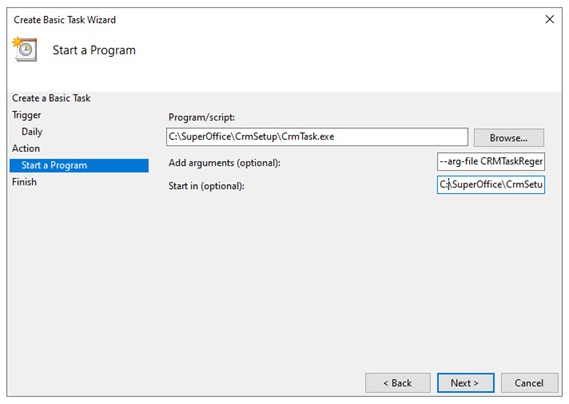
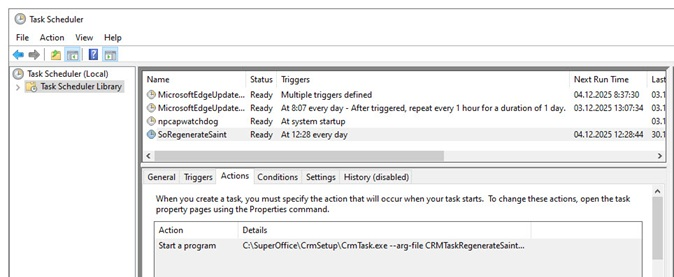
To run CrmTask automatically, you can use the Windows task scheduler to schedule it to run for example every night. As arguments, use --arg-file and add the corresponding argument file for the given task. If you do not specify the CrmTask command on the command line, you need to have it on the first line in the argument file (for example, regenerate-saint-counters).