Edit the layout of a card
Note
This feature requires a license for Development Tools or the CRM Suite Core plan.
When you have created a new layout, it is time to customize it. Personalize the layout for the main cards and archives to match your organization's information needs.
Considerations
Before customizing a layout, determine who the intended users are.
- What do they need at their fingertips?
- Do they need all default fields and tabs, or should you remove something?
- Do they require additional tabs?
- What is the logical order of fields?
Note
You can edit the default layout, however, you cannot edit the default control settings and you cannot re-assign the layout to a user group.
Edit card layout
Open the Screen Designer.
At the top, select a screen or dialog to customize.
Select a layout in the list on the left side.
Click below the preview.
In the Edit card layout screen, work your way through the tabs of the screen.
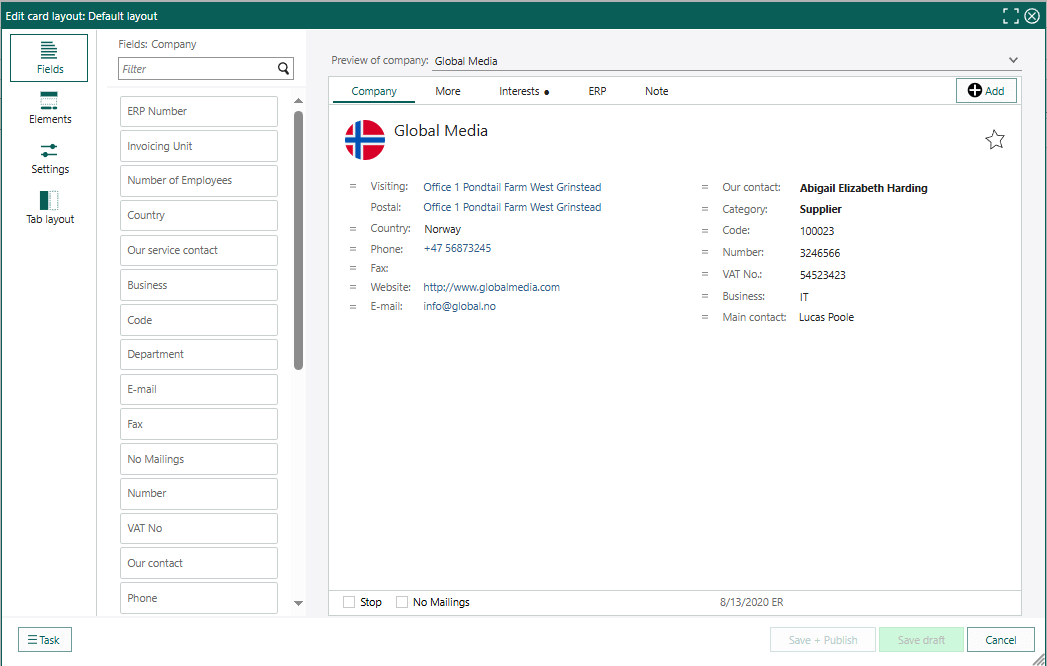
Save, publish, or cancel
After editing a layout, click one of the following buttons:
| Button | Description |
|---|---|
| Save draft | Saves an unpublished version of the layout, which you can resume editing later or ask someone to review. |
| Save + Publish | Applies the layout to the selected user groups or sale/project/request/follow-up type . |
| Cancel | Discards all changes. |
Undo changes
If you need to revert to an earlier version of the screen, you can access the following options from the Task button ():
Reset to factory settings: This option discards all changes and resets the layout to the default version provided by SuperOffice.
Restore tabs: This option reinstates any tabs that have been previously removed.
Discard draft: This option discards all unsaved changes and reverts the layout to the most recently published version.
Delete layout
When a user-group-based layout is deleted, users in that group see the default (system) layout.
To delete a layout:
- Select the layout in the Layouts list.
- Click Delete.